Booking visits into the calendar
Creating a work order says what needs to be done. Booking a visit says when, and by whom. This happens on the Calendar page, and there are two ways to do it.
Two ways to book
Drag it onto the calendar
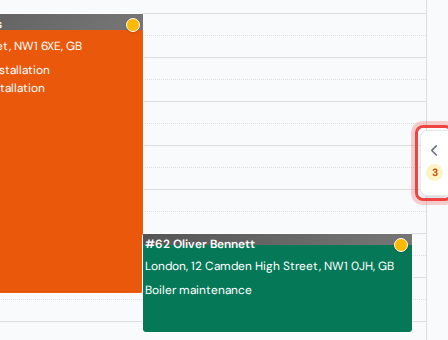
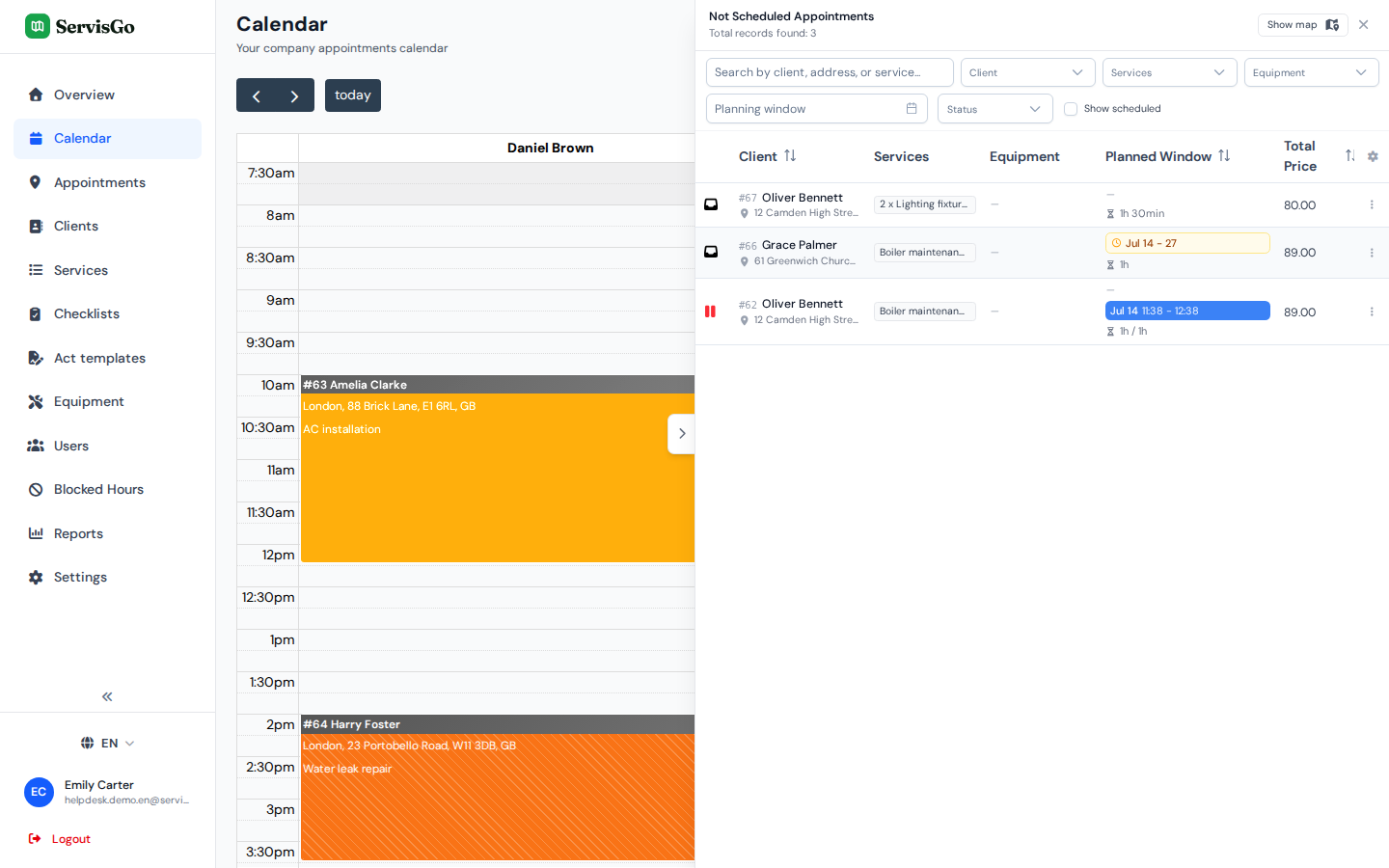
Open "Calendar" in the sidebar. At the right edge of the screen sits a small tab with an arrow and an orange counter. Click it, and the "Not Scheduled Work Orders" panel slides out, listing every work order that still needs a time.
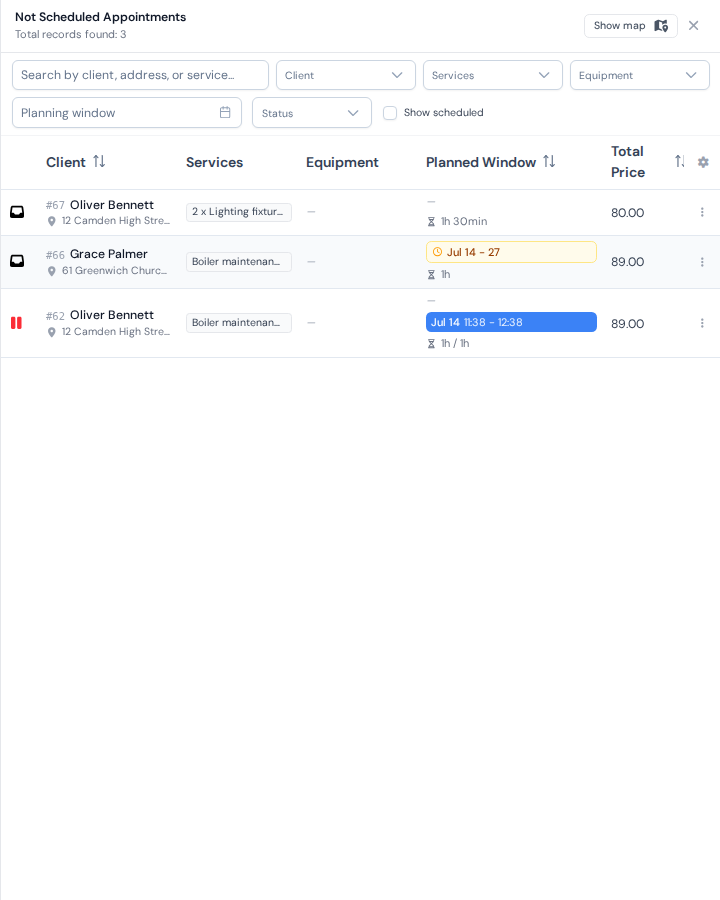
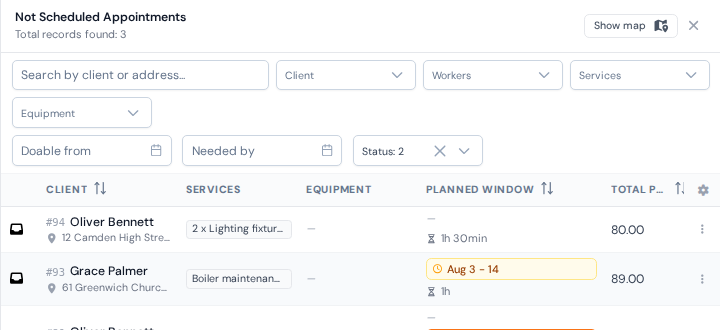
The filters above the list decide what it shows. Fresh jobs and jobs needing a replan ("Not Scheduled" and "On Hold") are shown by default, but the "Status" filter can bring in scheduled, running or completed ones too, and the "Workers" filter narrows the list to certain technicians. Two date filters slice the list by planning window: "Doable from" keeps jobs that can still be done starting that day, and "Needed by" shows everything that must be done by a certain day, which is exactly the list to work through on a Friday.
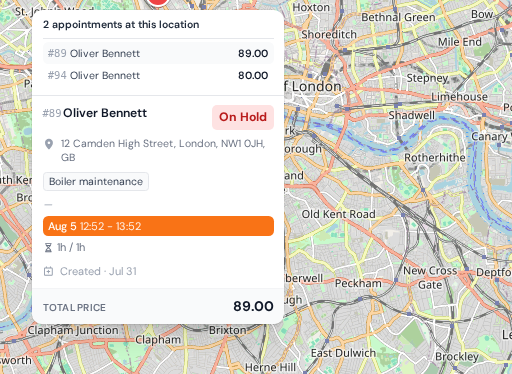
The map is one click away: press "Show map" in the panel's top corner, and the same jobs appear as pins, so you can plan by geography instead of by list. Point at a pin and a card pops up with everything about that job: services, planned window, notes and price. You can grab the card and drag it straight into the calendar, exactly like a row.
Grab a work order row in the panel and drag it into a technician's column, at the time you want. While you hold it over the calendar, the exact start and end times show on the block and on the time axis at the left. Drop it, and the visit is booked: it appears as a colored block in that technician's day.
Let ServisGo suggest times
ServisGo can also propose the best times for you. Open the work order for editing (in the "Work Orders" list, open the three-dot menu in the "Actions" column of its row and pick "Edit") and find the "Visits" section at the bottom of the dialog. Click "Add visit" and a panel opens on its "Suggested times" tab, showing cards with the best options: each shows the date, the time, the technician, and how much driving that choice adds. Click a card to add the visit, then press "Update" to save.
To rank the suggestions, ServisGo looks at where the job is, which technicians can do it, and which open time means the least driving. See the route planning article for how this works.
Choosing the list's columns
Every row in the panel sums up one job: the client, the services (when the same service is planned more than once, a count like "2 x" appears in front of its name), the planned window, the "Total Price" of the planned services, the "Created" date, the "Finished at" date once the job is closed out, notes and the technicians.
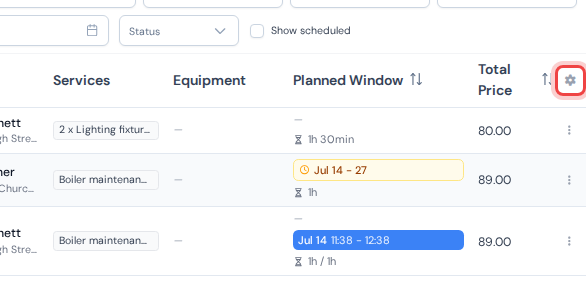
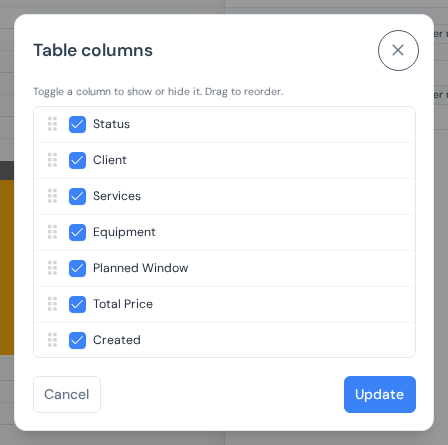
You decide which of those columns the list shows, and in what order. Click the small cog icon at the right end of the list's header row. A dialog named "Table columns" opens. Tick a column to show it, untick it to hide it, and drag the rows by the handle on their left to change the order. Press "Update" and the list rearranges itself.
Jobs that take several visits
A big job may not fit into one day, and it does not have to. Simply book the same work order onto several days; each drop creates another visit.
The work order shows the status "Scheduled" while visits are booked ahead and work has not started ("In Progress" once it has), and each visit tracks its own progress. See work order statuses and visit statuses.
Rescheduling and removing visits
- To move a visit, drag its block in the calendar to another time, or into another technician's column. While you drag, the exact landing time shows on the block and on the time axis; the calendar guide shows how it looks.
- To take one visit off the calendar, right-click its block and pick "Unschedule" under "Time slot" in the menu that opens. The work goes back to the "Not Scheduled Work Orders" panel, ready to be booked again.
- To take a whole work order off the calendar at once, open "Work Orders" in the sidebar, open the three-dot menu in the "Actions" column of its row and pick "Unschedule". The action only shows while the work order has booked visits; see the work orders list guide for everything else that menu can do.
Travel time
You never have to calculate driving yourself. ServisGo automatically adds travel time around each visit, based on real road distances, so back-to-back visits always leave enough room to get from one address to the next. You can see it in the calendar as the dark gray strip at the top of each visit block: the longer the drive, the taller the strip.