Visit statuses and calendar colors
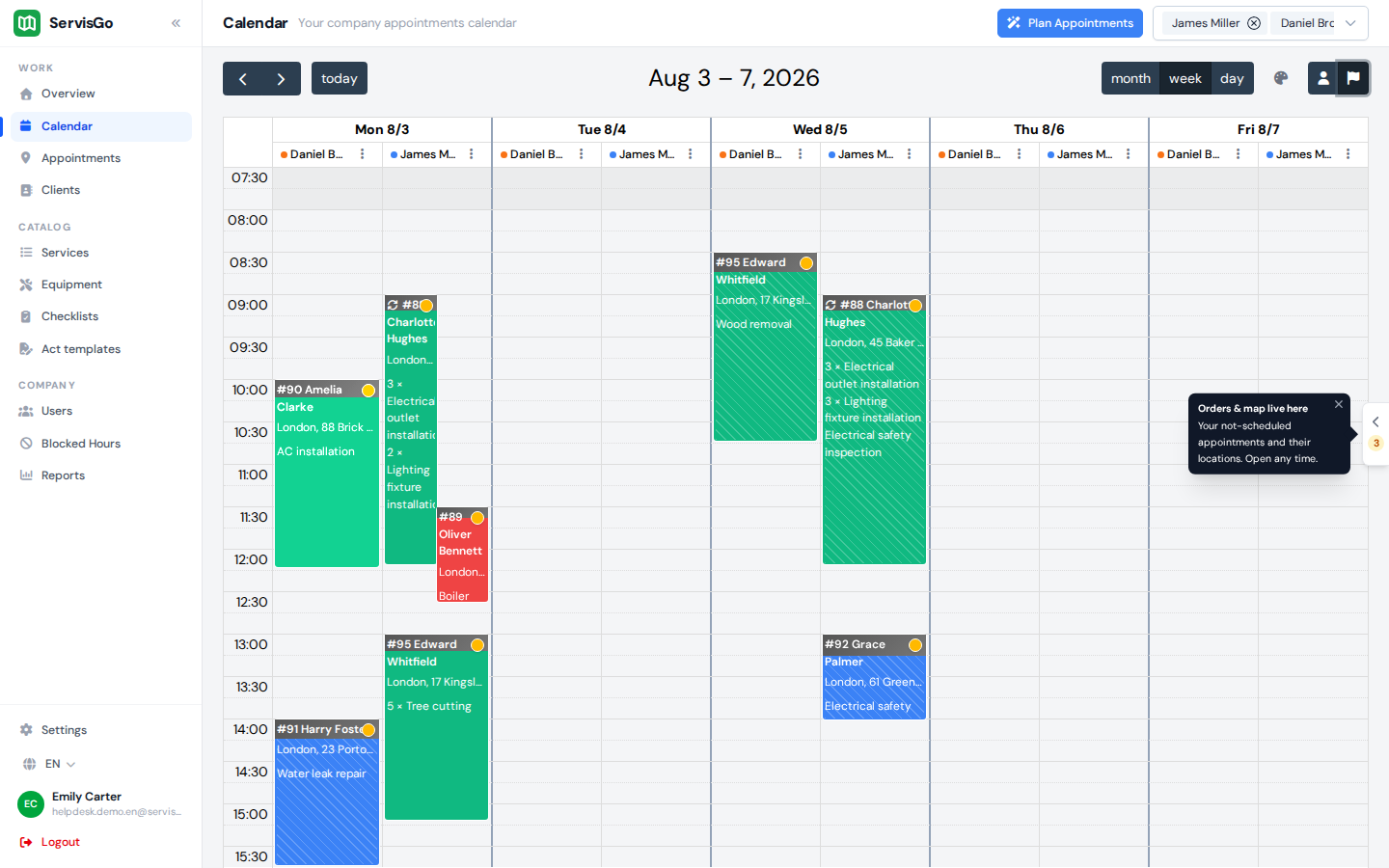
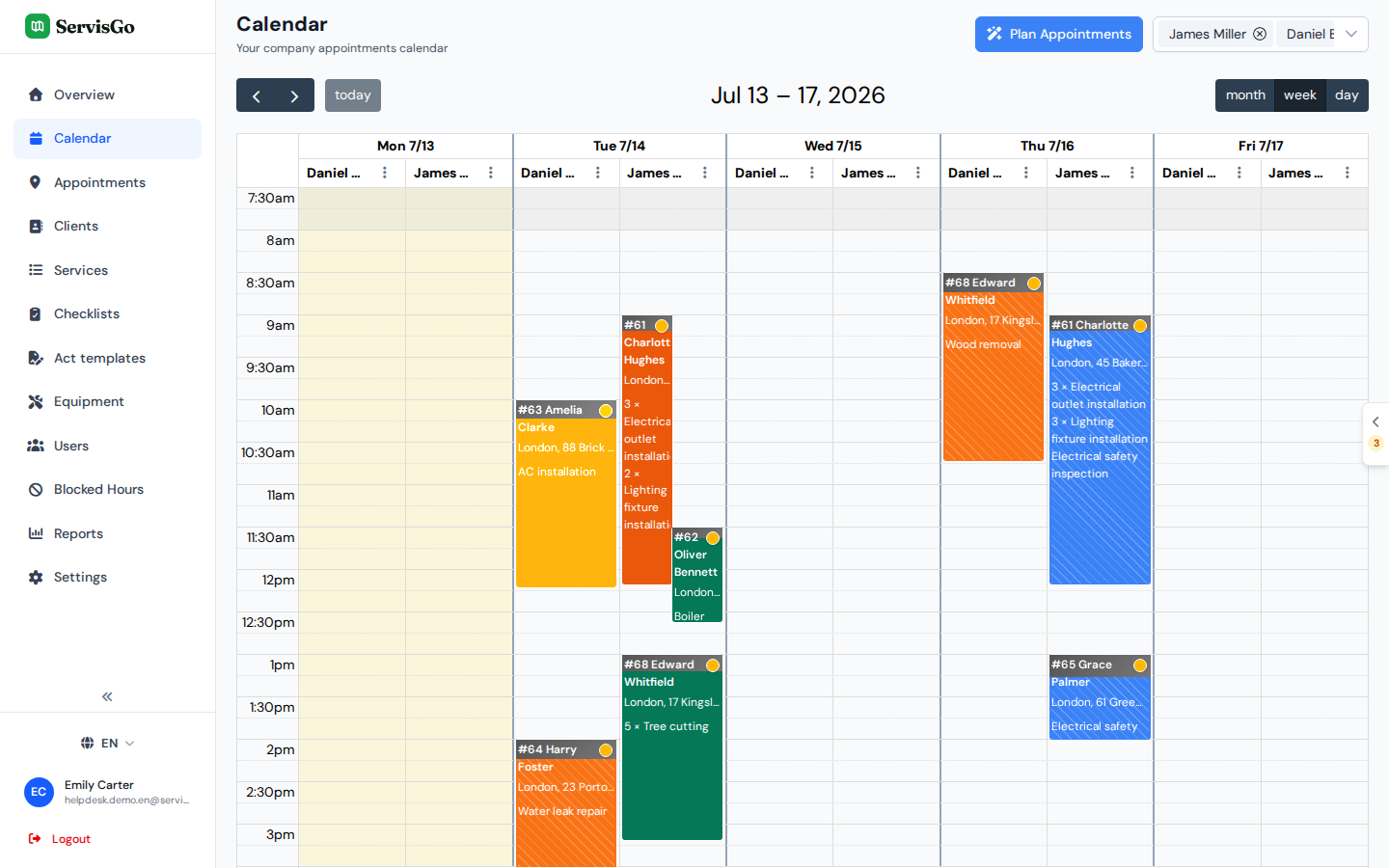
Every visit in the calendar has a status that tells you where the work stands, before anyone picks up the phone. The status also drives the color of the visit, so a single look at the calendar shows what is running, what is done, and what needs a follow-up.
The four statuses
- Not started
- The default. Work has not begun yet, so the visit shows in the technician's own color.
- In progress
- The technician is on site and working. The visit turns amber.
- Finished
- The visit is done and nothing is left from it. The visit turns green.
- Unfinished
- The visit ended, but work remains, so a return visit is needed. The visit turns orange so it stands out.
How statuses get set
Technicians set statuses from their app as the day unfolds: they start the visit when they arrive, then mark it "Finished" or "Unfinished" when they leave. Your calendar updates on its own.
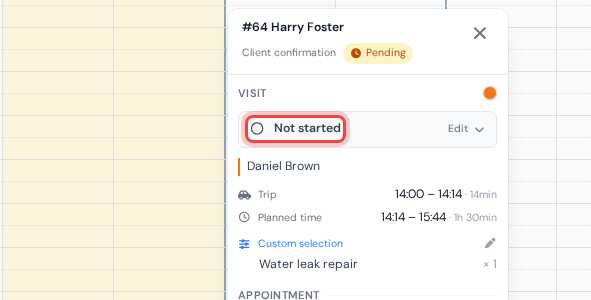
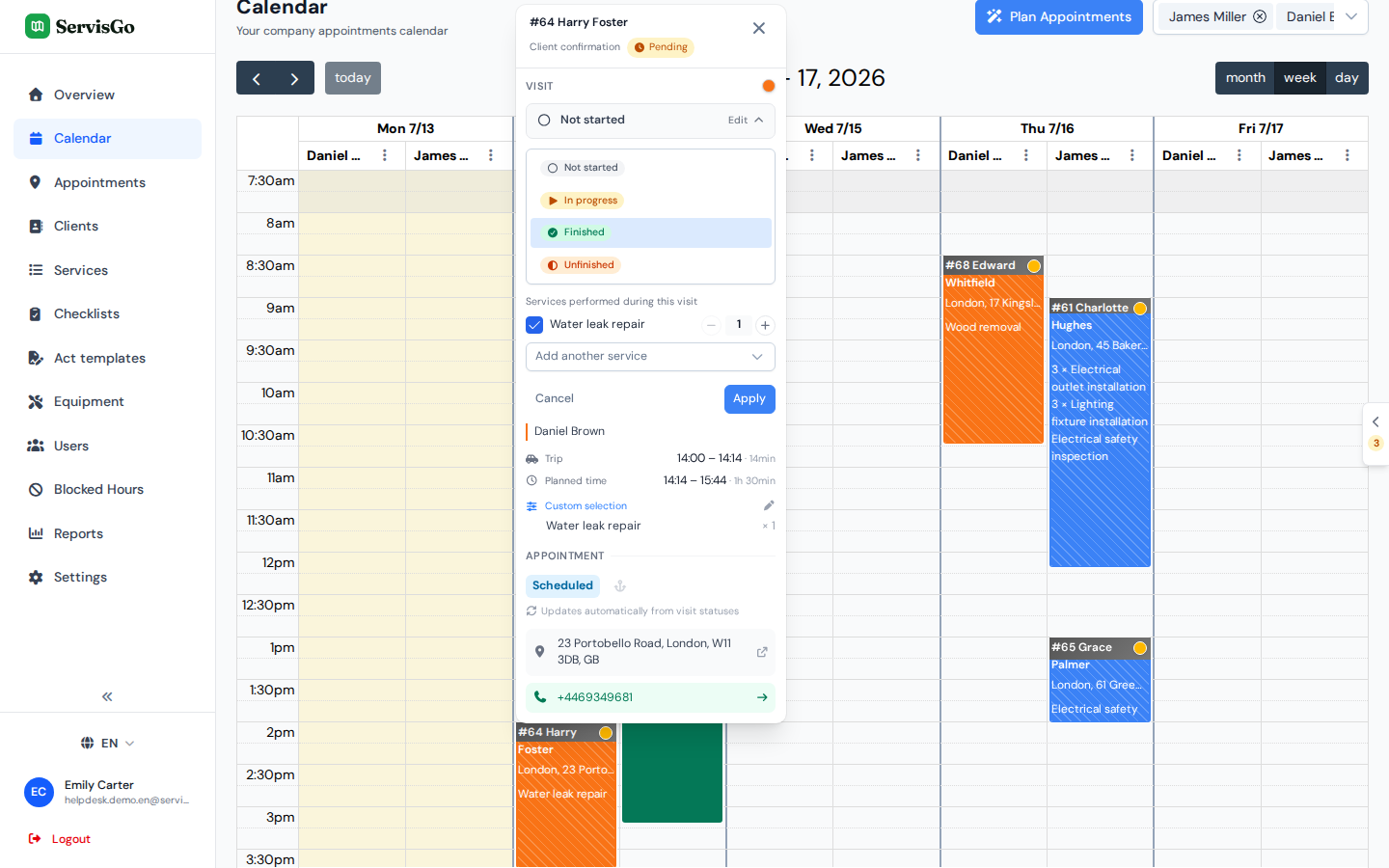
You can also set a status yourself, which is handy when a technician forgot, or when you manage the day from the office. Click the visit in the calendar so its details card opens. The status badge sits on the card's "Visit" row near the top, next to the small round color dot. Click the badge and an area opens right below it, listing all four statuses. Pick one, then press "Apply".
When you pick "Finished" or "Unfinished", a short list titled "Services performed during this visit" appears below the statuses. It shows the services planned for this visit, each with a checkbox and a plus-minus amount stepper: tick what was actually done and set how much. Did the technician do something extra? Click "Add another service" and choose it from your list. Press "Apply" and the work is recorded against this visit.
What decides the color
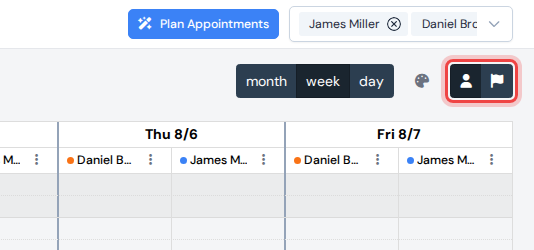
The calendar has two coloring modes, and you switch between them with the two small buttons next to the palette icon in the calendar's top-right corner, right after the month, week and day buttons. Each person picks their own mode; your choice changes nothing for your colleagues.
In the "Worker" mode (the default), a visit's color follows three simple rules, in this order:
- If you gave the visit a custom color, it keeps that color no matter what. You set one by clicking the round color dot next to the status badge on the visit card, then picking "Custom color".
- Otherwise, a visit that was started, finished or marked unfinished shows its status color: amber, green or orange.
- Otherwise, the visit shows the technician's color, so each column is easy to tell apart.
In the "Work Order status" mode, all visits of one work order share a single color, taken from the work order's status: blue while scheduled, green once work is in progress, orange when completed, red when on hold. This view answers a different question: not "how is each visit going", but "how far along is each job".