Working with the calendar
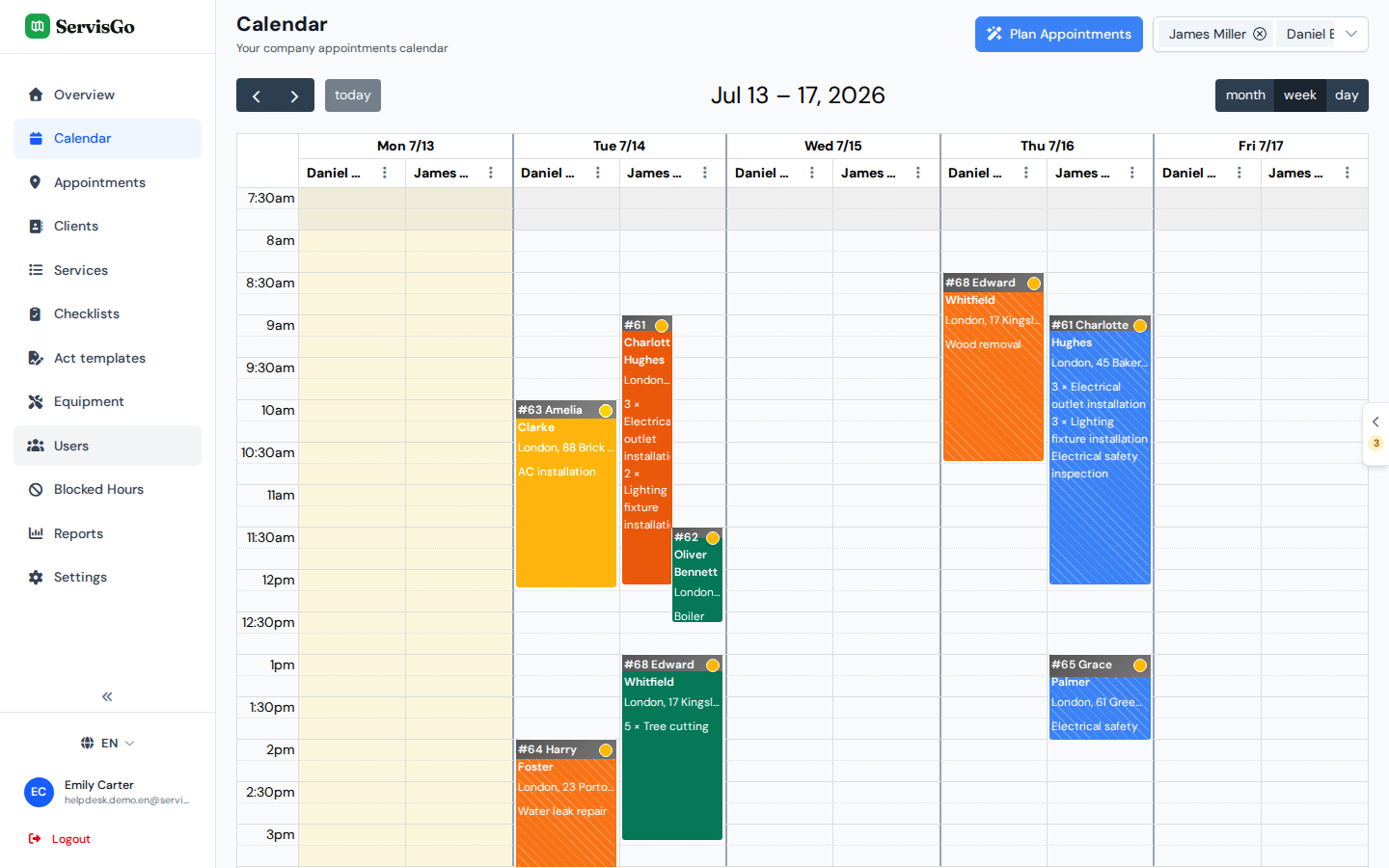
The calendar is where the plan comes together: every technician has their own column for the day, and every visit sits in it as a block you can click, drag and resize. It is also the first page you see after signing in.
This guide walks through the layout, the visit card, and the everyday moves: rescheduling with a drag, changing a visit's length, and booking waiting work orders.
Finding your way around
Each technician gets one column per day, so a day view reads like a set of personal schedules side by side. To zoom in or out, click the month, week and day buttons in the top-right corner of the calendar. The arrow buttons in the top-left corner move you back and forward in time, and the today button next to them jumps back to the current date. The two small buttons next to the palette icon, at the right end of the same row, switch what the visit colors mean: each technician in their own color, or every job in the color of its status. The visit statuses guide explains both modes.
The visit card
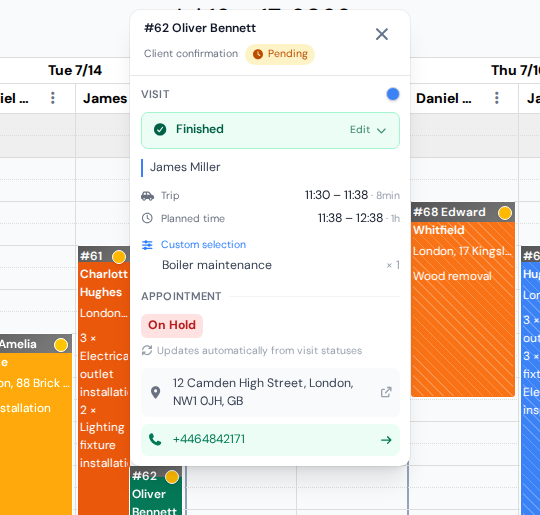
Click any visit block once and a small card pops up next to it with everything about the visit in one place. Click the X in its corner (or the visit again) to close it. The card shows:
- Times: the "Trip" (travel there), the "Planned time" for the work, and the "Actual worked time" once the technician has started.
- The technician the visit belongs to.
- The service list showing what is still left to do.
- The work order behind the visit: its status, the client's notes, and a blue "View" button that opens the full work order without leaving the calendar.
- The address and phone number, so you can call or check the location without leaving the calendar.
Moving and resizing visits
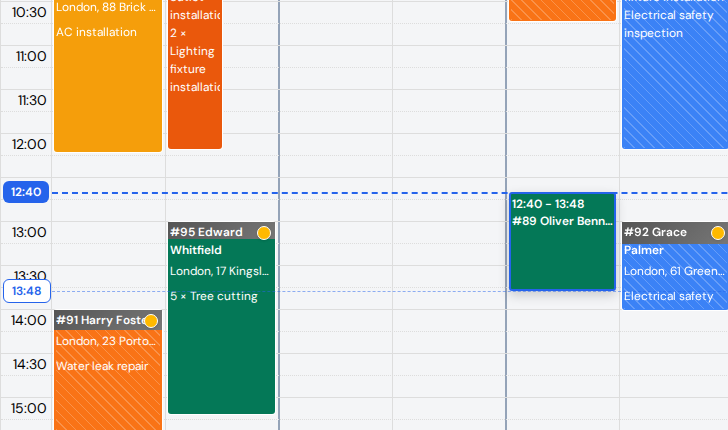
Rescheduling is just dragging. Press and hold a visit block, drag it to another time (or across into another technician's column) and drop it there. The visit moves and a confirmation message appears; nothing else to save. To change how long the work takes, grab the bottom edge of the block and drag it up or down.
While you hold a block, ServisGo shows exactly where it will land: the block itself displays the new start and end times, and dashed lines stretch across the grid to small time bubbles on the left time axis. That helps most in the columns far from the axis, where the row lines are hard to read. Resizing works the same way: the bubble follows the bottom edge and shows the new end time.
Right-clicking a visit opens a menu with more actions. Under "Time slot" you can pick "Copy" (put the same visit in another place too) or "Unschedule" (take the visit off the calendar; the work order goes back to waiting for a time). Under "Work Order" you can pick "View" or "Edit" to open the work order itself.
Work orders waiting to be booked
Click the small tab on the right edge of the calendar screen and a panel slides open, listing the jobs that still need a time; the "Show map" button in its top corner puts the same jobs on a map. Drag a row from the panel (or the map's hover card) straight into a technician's column to book it, or use the suggested times instead. The scheduling guide covers the panel, its filters and the map in detail.
And the colors? A visit's color reflects its status: not started, in progress, finished or unfinished. The visit statuses guide explains the full color logic.