Technicians and user accounts
Everyone in your company gets a user account, but not everyone uses ServisGo the same way. Managers plan from the dashboard; technicians work from their phone in the field.
This guide covers the roles, the settings that put a person in the calendar, and how ServisGo knows who can do which job.
The three roles
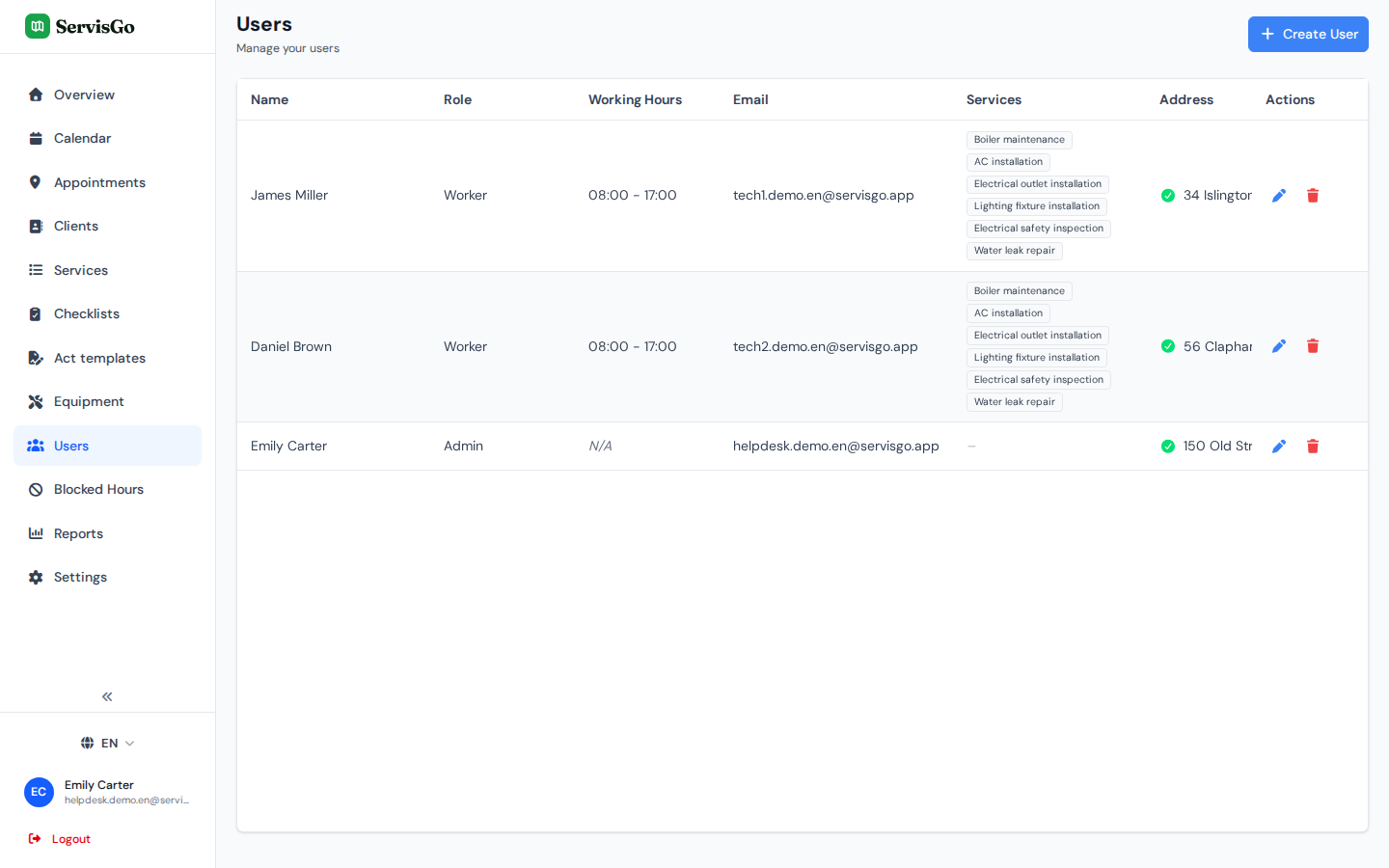
Accounts are managed on the "Users" page. Click "Users" in the left sidebar to see everyone. Each account has one of three roles, chosen in the "Role" field when you create or edit the user:
- Admin
- Full access to this dashboard, including settings and user management.
- Manager
- Works in this dashboard: clients, work orders, the calendar.
- Worker
- A field technician. Workers sign into the technician mobile app with the email and password you set on their account.
Setting a person up for the calendar
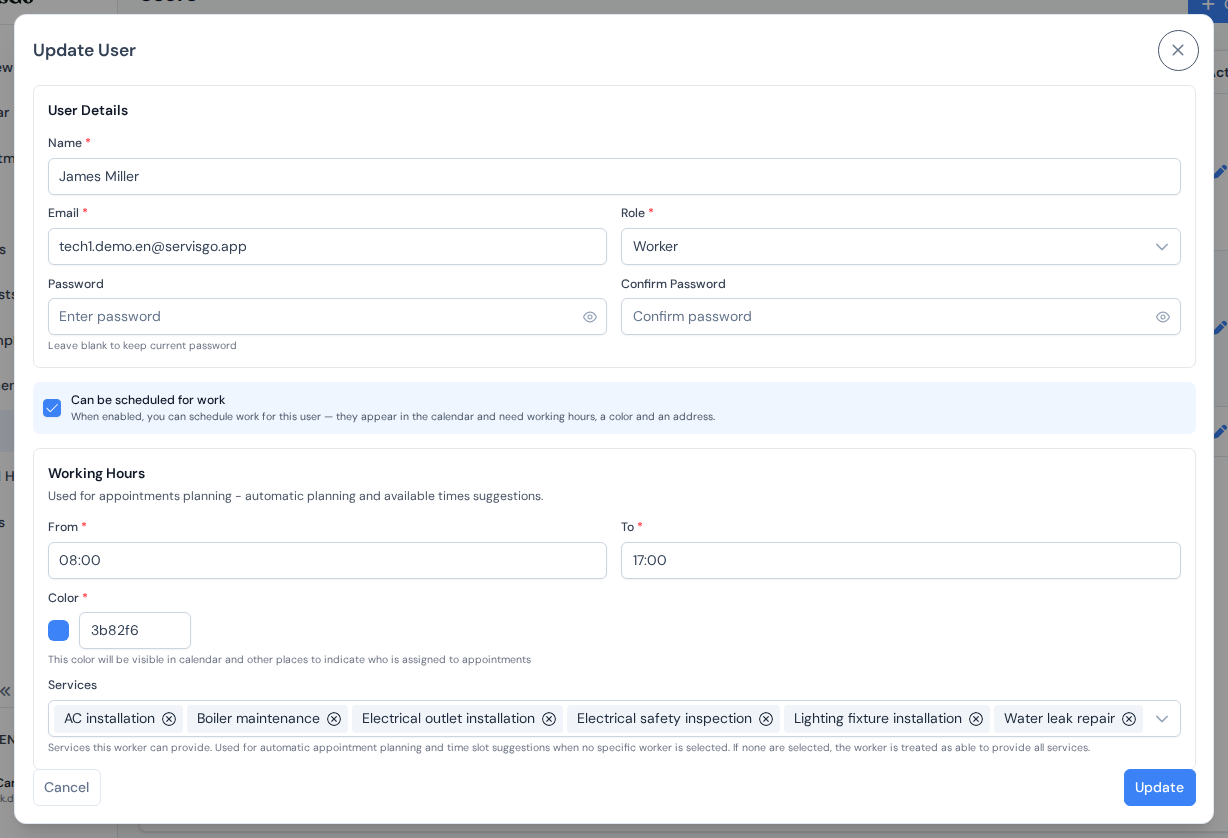
To add someone, click the "Create User" button in the top-right corner of the "Users" page. A dialog opens asking for their name, email, password and role. The checkbox that matters most is "Can be scheduled for work": tick it and the person gets their own column in the calendar, and three more sections appear in the dialog:
- "Working Hours": the "From" and "To" times of the day they can be booked in. Suggestions and planning never go outside them.
- "Color": pick it with the color swatch. Their visit blocks show in this color in the calendar (until a status changes it; see the visit statuses guide), and their name appears next to a bar of this color across the app.
- "Address": their home address. Start typing it and pick it from the list that drops down, so the pin button next to it turns green (see addresses and the map). Each day's travel is planned from it, so the first drive of the morning is realistic.
Who can do which job
In that same dialog, under "Working Hours", the "Services" field lists what the person can perform. Click it and tick services from the list. ServisGo uses it whenever it suggests times: only technicians who can do all of a work order's services are offered. See the route planning guide.
A saved signature for acts of work
At the bottom of the same dialog sits the "Signature" card. A signature stored here is placed on acts of work automatically when the "Signatures" feature is on: click "Add signature" to draw one, or "Upload from image" to read one from a photo or scan. The client signatures guide explains how the whole signing flow works.