Addresses and the map
Route planning, driving times and the technician's navigation all depend on one thing: ServisGo knowing where an address actually is. Not the text, the point on the map.
This guide covers the address box that every form in ServisGo uses, what the pin button next to it tells you, and how to set the point yourself when an address is not on the map.
One box for every address
Wherever you enter an address, you meet the same box: the objects of a client and their invoice address in the client dialog, a technician's home address in the user dialog, and your company address at first setup and on the company page. It is a single line that says "Start typing an address", with a square pin button to its right.
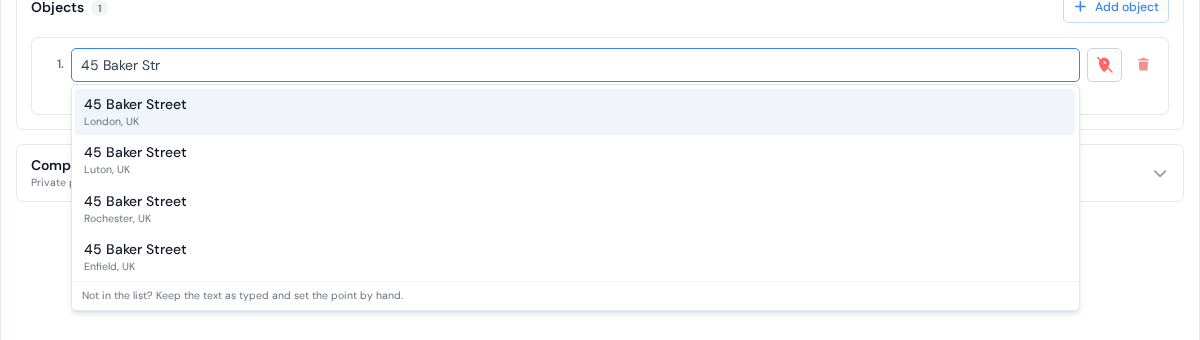
Type the first few letters and a list of matching addresses drops down, closest to your company first. Pick the right one by clicking it, or move down the list with the arrow keys and press Enter. The full address fills in, postal code included, and the pin button turns green: the place is on the map.
What the pin button tells you
The square button after the box shows whether ServisGo knows the point for this address. Hold the mouse over it and a short message says the same in words. Three states are possible:
- Green pin, "Found on the map"
- You picked the address from the list, and the point came with it. This is the normal case.
- Green pin with a needle, "Set by you"
- You typed the coordinates or placed the point on the map yourself (see below).
- Red crossed-out pin, "No coordinates yet, route planning skips this address"
- The address is text only. Route planning cannot drive to it, the driving strips around its visits stay empty, and map links show the address as plain text.

The same three pins appear next to the addresses on the "Clients" page and on the "Work Orders" page, so you can spot an address without a point without opening the client. Hold the mouse over the pin there and it reads "Placed on the map", "Placed by hand" or "No coordinates".
Setting the point yourself
Some places are not in the list: a new building, a summer house on a forest road, a plot with no street name. Type the address the way you want to see it on paperwork and leave it as it is; the note at the bottom of the list says exactly that: "Not in the list? Keep the text as typed and set the point by hand." Then click the red pin button.
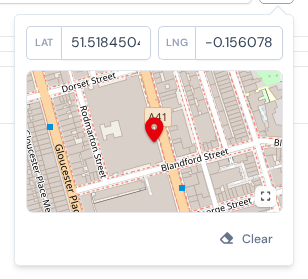
A small panel opens under the button. It has two fields, "LAT" and "LNG", a map preview below them and a "Clear" button. If you have the coordinates (a client sent them, or you copied them from a maps app), type them into the two fields: the preview jumps to the spot and the pin button turns green with the "Set by you" message.
Picking the point on a map
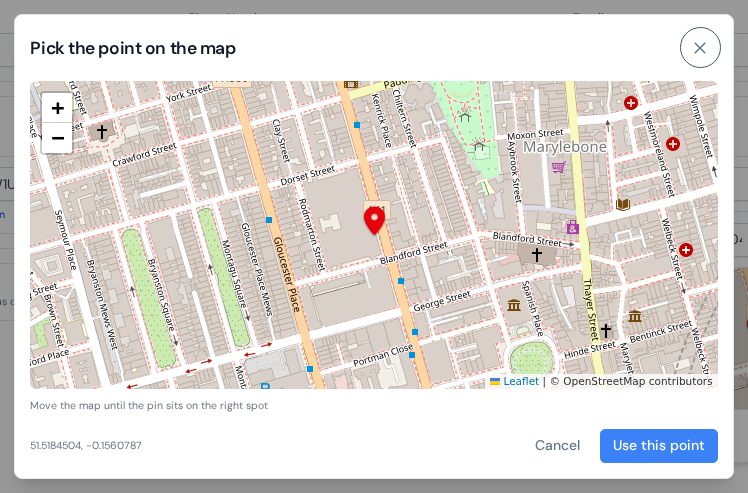
Most of the time you do not have coordinates; you just know where the place is. Click the map preview (or the grey "No point yet. Tap to pick one on the map" area when there is no point yet) and a window titled "Pick the point on the map" opens. The pin sits fixed in the middle of the map. Drag the map with the mouse until the pin is over the right spot, zoom in with the scroll wheel to get it exact, and click "Use this point". The panel shows the new coordinates and the pin button turns green.
"Clear" in the panel removes the point altogether: the button turns red again and the address is text only. On a phone the panel and the map window each fill the whole screen; everything else works the same.
Why the point matters
Every part of ServisGo that deals with distance reads the point, not the text:
- Route planning suggests times and adds driving around visits only for addresses with a green pin. A red one is skipped, and its visits show no driving strip in the calendar.
- The "Route Map" on the overview page and the map in the calendar's side panel draw a marker at the point.
- Map links in the dashboard and the "Navigation" button in the technician app open the maps app exactly at the point, so the technician arrives at the door, not somewhere on the street. An address without a point shows as plain text, and the "Navigation" button is greyed out.
So when the "Clients" page shows a red pin, it is worth fixing: open the client, click the red button next to that object and set the point. It takes a few seconds and every visit to that object gets its driving planned from then on.