When a job is complete
A job can take a single visit or spread across many. This guide explains, step by step, exactly when ServisGo treats a work order as done, why finishing one visit does not always finish the whole job, and what happens to the visits on your calendar once a job is closed.
If you remember only one thing: a work order is complete when every planned service has actually been done, not simply when a visit ends.
The short version
ServisGo sets a work order to "Completed" on its own the moment two things are both true at once: a visit is marked "Finished", and every service on the plan has been fully done across all the visits so far. If either piece is missing, the work order stays open and keeps its current status.
- A visit is marked "Finished" but some planned work is still outstanding: the work order stays open, it does not complete.
- The last piece of planned work is recorded and a visit is marked "Finished": the work order completes by itself.
- You can always set "Completed" or "Finished" yourself, whatever the visits say.
The rule: every planned service must be done
When a visit is set to "Finished", ServisGo checks the whole work order, not just that one visit. It goes down every line in the "Planned services" box and asks the same question of each: has this much been done yet, counting the work recorded on every visit together? Only when the answer is yes for every line does the work order become "Completed".
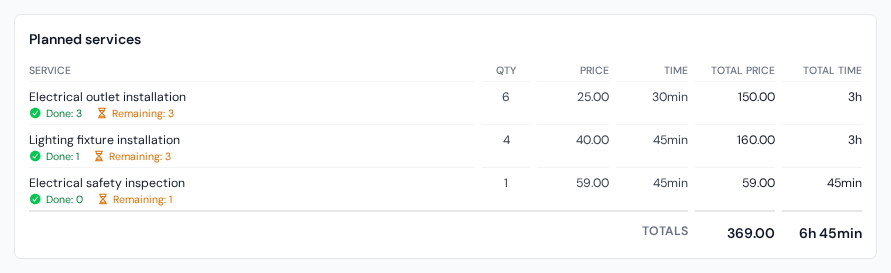
This is why the amount matters, not just whether a visit ended. A planned line for 10 outlets is only "done" once 10 outlets have been recorded as performed, whether that happened on one visit or was spread across five. In the "Planned services" box on the work order, every line carries a green "Done" and a "Remaining" count, so one glance tells you which lines still hold the work order open.
- Where the job completes
- A work order plans 10 outlets. On Monday the technician records 6 of them and marks the visit "Finished". Six is not ten, so the work order does not complete yet. It stays "In Progress" because another visit is still booked. On Wednesday the technician records the last 4 and marks that visit "Finished". Now all 10 are done, so ServisGo sets the work order to "Completed" by itself.
- Where the job does not complete
- The same work order plans 10 outlets, but this one visit was only ever meant to cover 3 of them. The technician does those 3 and marks the visit "Finished". Because 7 outlets are still outstanding across the whole work order, the job does not complete. It moves to "In Progress" if another visit is booked, or to "On Hold" if nothing is booked ahead, and the remaining 7 show up on the next visit's card.
The takeaway: finishing a visit is about that visit. Completing the work order is about the whole plan. A visit can be perfectly finished while the work order is nowhere near done, simply because that visit was never meant to cover everything. If a visit had 3 of 14 planned services on it and did all 3, that visit is finished and green, but the work order still waits on the other 11.
A visit marked "Unfinished" never completes the work order on its own either. "Unfinished" means the visit ended with work still to do, so ServisGo keeps the job open and carries what is left onto the next visit.
Reading a visit card on the calendar
Click any visit block on the "Calendar" page and a small card opens. It is the quickest place to see how one visit relates to the whole job, because it puts three service lists side by side.
- Custom selection
- The work this one visit is meant to cover. When a job is split across several visits or technicians, each visit usually carries only its own slice of the plan. How that slice is assigned is covered in which services each visit covers.
- To do
- Everything on the whole job that was still outstanding when this visit came up, not just this visit's own share. This list appears once a visit carries its own selection. If it is longer than the list above it, this visit alone cannot complete the job, no matter how well it goes.
- Performed services
- What has actually been recorded as done on this visit, each line with a green check. Recording is explained in recording the work that was done.
The same card also answers both status questions at once: the "Visit" block at the top carries the visit's own status, and the "Work Order" block below it carries the status of the whole job. Whenever a finished visit did not close a job, the reason is written right there: compare what is still open on the job with what the visit actually covered.
A worked example: one job, two crews
Here is a setup field companies know well. A client orders five trees cut down and the wood taken away. That is one work order with two planned lines: "Tree cutting" ×5 and "Wood removal". One technician cuts the trees. Another collects the wood two days later with the truck, on his round through town, so the haul-away is booked as its own visit and assigned only to him.
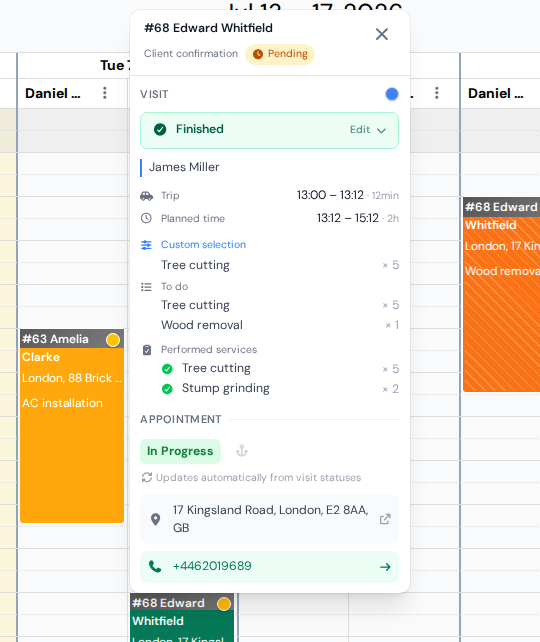
Look closely at that card. Under "Custom selection" the visit carried only "Tree cutting". Under "Performed services" all five cuts are recorded, plus two stump grindings the crew did on the spot. The visit is marked "Finished" and shows green on the calendar. And still the job did not complete, because the "To do" list still holds "Wood removal": work that was never this visit's to begin with. ServisGo set the work order to "In Progress" and left it open, since the haul visit is still booked ahead.
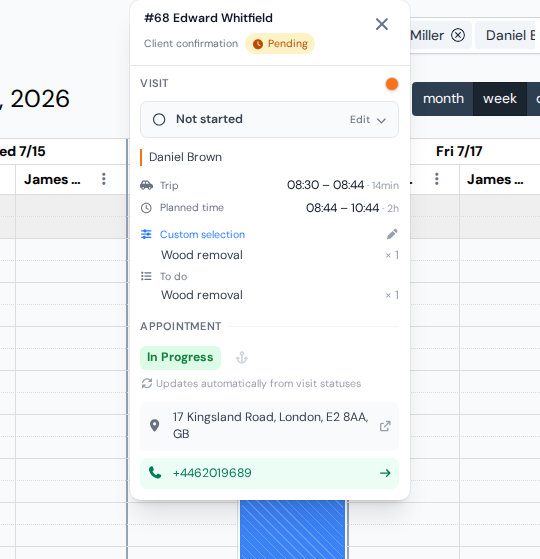
Two days later the driver collects the wood, records "Wood removal" as performed and marks his visit "Finished". Now the check passes: every planned line is done, so the work order flips to "Completed" on its own. Had he marked the visit "Finished" without recording the removal, the job would have stayed open, exactly as it did after the cutter's visit.
Extra work that was never planned
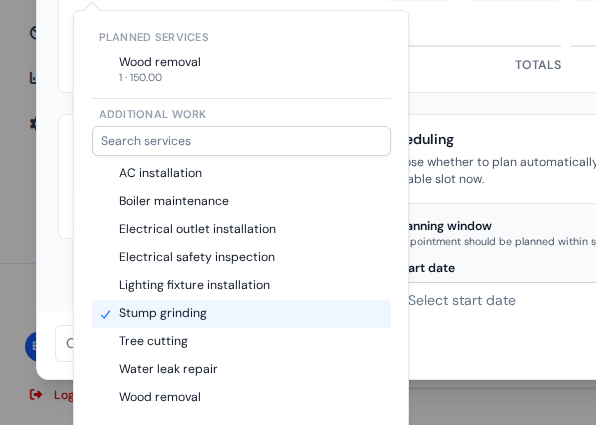
Crews often do more on site than what was ordered: in the example above, the cutting crew also ground down two stumps. Record work like that on the work order's "Performed services" rows: click the service field on a new row and pick the service from the "Additional work" list instead of a planned line.
Two ways a job gets closed
A work order reaches "Completed" or "Finished" in one of two ways:
- Automatically
- The moment a visit is "Finished" and the whole plan is done, exactly as described above. You do nothing, the status changes on its own.
- By hand
- You set "Completed" or "Finished" yourself, from the status dropdown in the "Work Orders" list or at the top of the "Scheduling" section when you edit the work order. Handy when you want to close a job regardless of what the visits show, for example one the client called off partway, or one you are billing as it stands. See work order statuses.
The difference between the two closed statuses is simple: "Completed" means the work is done, "Finished" means the work is done and the paperwork too, invoiced and closed out. "Finished" also stamps a moment in time you can show as the "Finished at" column in the "Work Orders" list.
What happens to your visits when a job closes
Closing a job, whichever way it happens, does two things on the calendar:
- Any visits still ahead are taken off the calendar. Once the job is done there is no reason to send anyone out again, so future visits are removed automatically.
- Visits that already happened stay exactly as they were. ServisGo does not touch their status. A visit you left as "Not started" stays "Not started", a visit marked "Unfinished" stays "Unfinished", and only the visits you actually finished are "Finished".
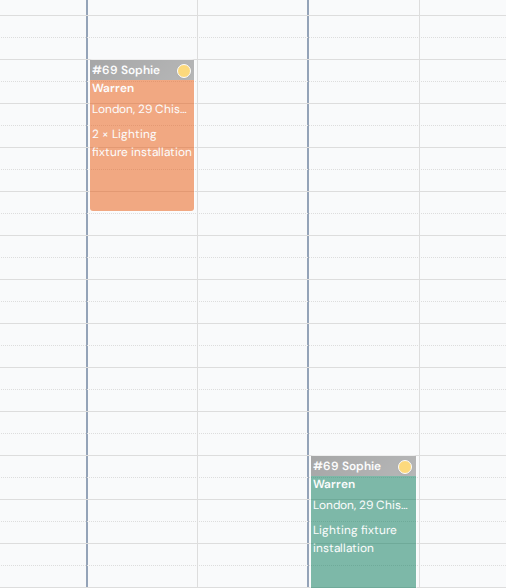
The fading depends on which of the two closed statuses the job carries. A "Completed" job still shows at full strength: the work is done, but the job is on your desk until the paperwork is too. Once it is "Finished" (or "Cancelled"), every visit of the job turns faded, so a single look tells you it is fully closed. Each visit keeps its own color underneath the fade, so the calendar still tells the true story of what happened on each day: green stays green where the work was finished, orange stays orange where a visit was left unfinished, and a plain untouched visit keeps the technician's color.
An example. A job ran across the week: Monday and Tuesday visits were booked but never worked, Thursday and Friday were done and marked "Finished". When you mark the work order "Finished" at the end of the week, all four blocks turn faded, but the Monday and Tuesday blocks stay in the technician's plain color and the Thursday and Friday blocks stay green. Nothing pretends Monday was done. The colors still show that only Thursday and Friday saw the work.