Recording the work that was done
Planned services say what the client ordered. Performed services say what actually happened: which work was done, how much of it, and at what price.
This guide shows where to record that work, how to read the "Performed services" overview on a work order, and what the records affect elsewhere in ServisGo.
Recording performed work
Open the work order for editing: right-click its visit in the calendar and pick "Edit", or open the three-dot menu at the end of the work order's row on the "Work Orders" page and pick "Edit". In the window that opens, scroll down to the "Performed services" box. Each line you add there is one record of work: which service, how much of it, the price, an optional note, and which visit it belongs to.
- 1Add a line
Click "Copy from planned" in the top-right corner of the box to prefill a line for every planned service that still has work left, or click "Add line" under the lines to start an empty one.
- 2Fill in the work
Click the service field of the line. A small panel opens with the work order's planned services listed at the top; pick one, or click "Additional work" below them to search your full service list. Then enter the amount and set the price, either a "Unit price" or a total for the line. To add a note, click the speech-bubble icon next to the service field.
- 3Pick the visit it belongs to
The "Visit" dropdown at the end of the line links the record to one of the scheduled visits. Pick the day the work happened. You can also leave it as "No specific visit".
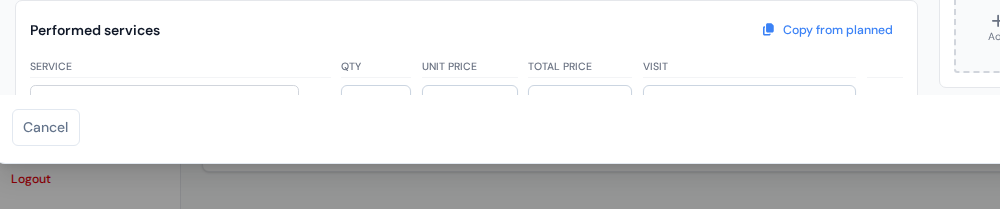
Recording performed lines: service, amount, price, and the visit the work belongs to.
Summary and Breakdown
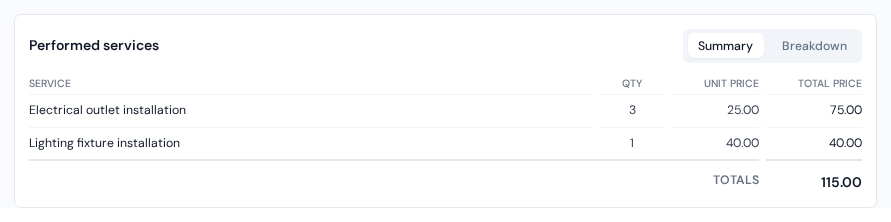
Open the work order window: right-click its visit in the calendar and pick "View", or click the work order's number in the "ID" column on the "Work Orders" page. The "Performed services" box there has a small "Summary" / "Breakdown" switch in its top-right corner, showing the same records from two angles:
- Summary
- Totals per service: identical records added up into one line with the amount, unit price and total. And to compare against the plan, look at the "Planned services" box just above it: every planned line carries a green "Done" and a "Remaining" counter, so one glance tells you whether the job is complete.
- Breakdown
- Every record on its own line, each with its price, note and a small tag naming the visit the work belongs to. Use it to see exactly what was done on which day.
What performed records affect
Performed records are not just bookkeeping. Two other parts of ServisGo read them:
- The cards of later visits. When part of the work is recorded as done, the remaining visits of the same work order automatically show only what is left. See the guide on visit services.
- The services table of acts of work. When you generate an act of work for the work order, its "Performed services table" is built from these records, amounts, prices and notes included. See the guide on acts of work.