Acts of work (service reports)
When a job is done, the client often needs a document: what was performed, at what price, signed by both sides. In ServisGo these are called acts of work, also known as service reports.
There are two parts. Templates decide how the document looks. Reports are the documents themselves, generated from a work order with its real data.
Turning the feature on
Acts of work are optional. To turn them on, click "Settings" in the left sidebar, pick "Acts of work" in the module list on the left, flip the switch in the top-right corner of the panel from "Disabled" to "Enabled", and click "Save". "Act templates" appears in the left sidebar, and every work order gains an "Acts of work" section.
Templates: designing the document
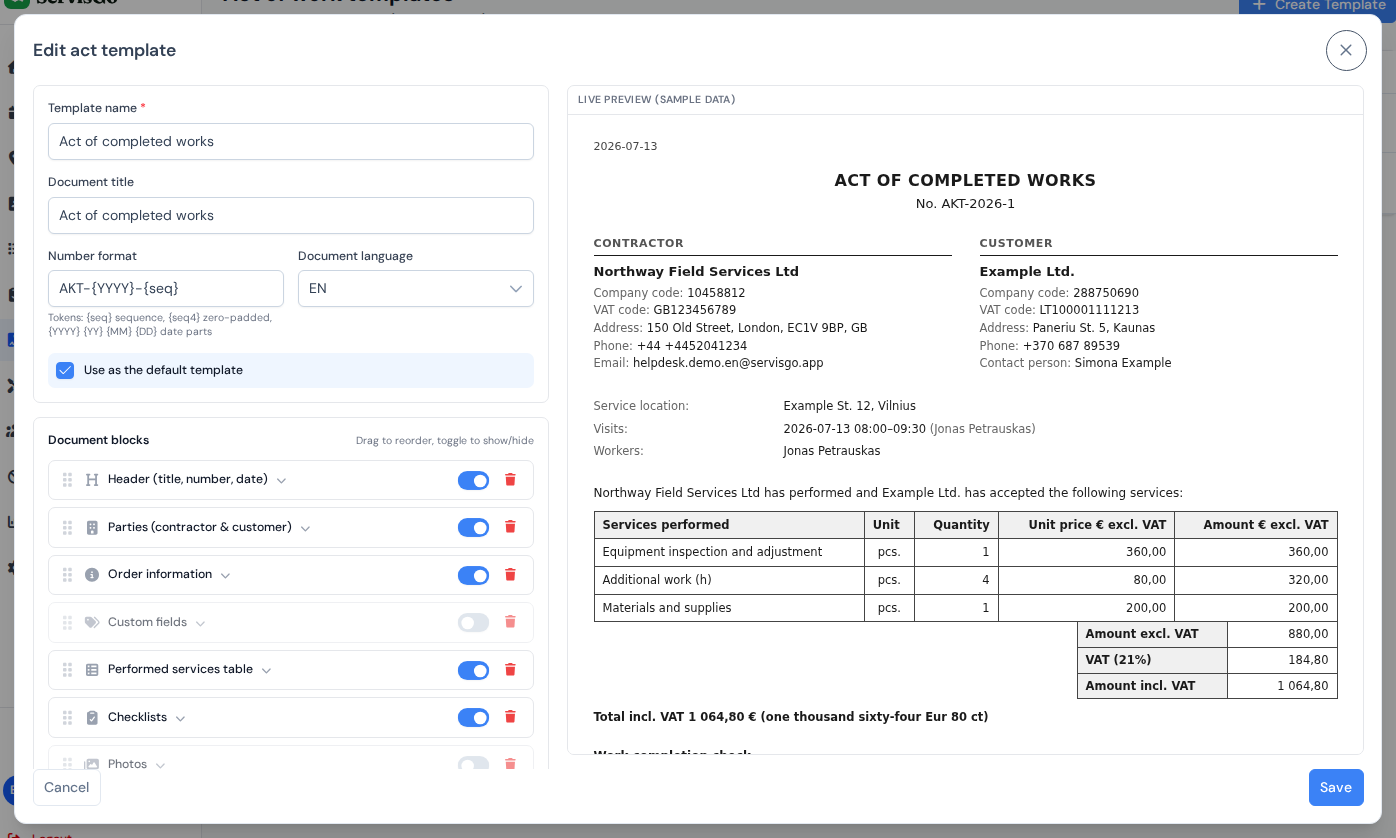
Click "Act templates" in the left sidebar, then the "Create Template" button in the top-right corner of the page. A builder opens with the block list on the left and a live preview of the finished document on the right. Click "Add block" to add the blocks you need, drag them into order, and watch the preview update as you go:
- Header (title, number, date): the document title, act number and issue date. Tick "Show place" and a "Place" box appears where you type the town printed next to the date.
- Parties (contractor & customer): your company details and the client's, with the fields you choose. The "Contact person", "Phone" and "Email" lines name the contact person picked on the work order (see creating a work order).
- Order information: order number, service location, visit dates & times, workers.
- Performed services table: the work done, with or without prices, and VAT handled the way you need.
- Checklists: the filled checklist answers.
- Photos: pictures attached to the work order (documents like PDFs stay on the work order and are not printed).
- Custom fields: extra values you fill in when generating each act, like an agreement number.
- Order notes and Free text: notes from the work order or fixed wording of your own.
- Signatures: signature lines for the contractor and the customer.
Generating an act on a work order
Open the work order (on the "Work Orders" page, click its number in the "ID" column) and scroll down to the "Acts of work" card. Click the "Generate act" button in the card's top-right corner. In the "Generate act of work" dialog, pick a template, check the act number (assigned automatically) and issue date, then click "Generate". The act is created as a "Draft".

A draft is live: it always shows the latest work order data. Record another performed service or fill in a checklist, and the draft reflects it the next time you open the preview. To open it, click the eye icon next to the act in the "Acts of work" card.
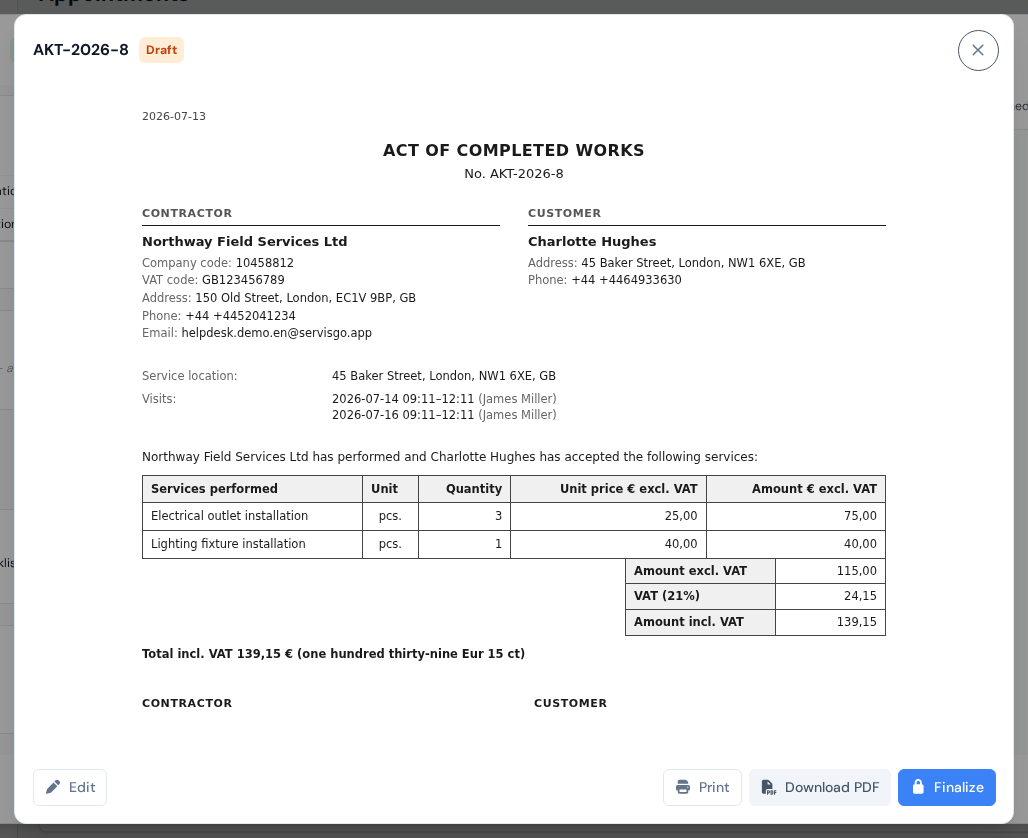
When the document is ready, open its preview and click "Finalize", which sits at the top of the preview window, next to "Print" and "Download PDF". A finalized act is locked: its data and layout are frozen, and a PDF is stored that you can download or print at any time, even years later, exactly as it was issued.
Real signatures instead of empty lines
With the "Signatures" feature switched on, the "Signatures" block stops being two empty lines. The client signs on the technician's phone when the job is completed, and the act prints that signature over the customer line, with the name of the person who signed and the date. The contractor line carries a saved signature of your own choosing: the technician's who finished the job, or one fixed person's.
The whole flow, from switching it on to the signing moment on site, is covered in the client signatures guide. At that moment the technician also confirms the email address the act should go to; ServisGo stores it with the work order, and sending finished acts to that address and to the contact persons marked "Send service reports" arrives in a later update.