Recurring work orders
Some jobs never really end: the office gets cleaned every week, the boiler gets serviced every year, the lawn does not mow itself. Instead of retyping or copying the same work order again and again, you can hand the repetition over to ServisGo.
A recurring rule watches a job for you. Every time the current work order is closed, the next one is created automatically, ready to be booked.
How a recurring rule works
A rule is built on one existing work order of a client, its "base". When that work order reaches "Completed", "Finished" or "Cancelled", ServisGo creates a fresh copy: the same services with their amounts and prices, the same address, technicians, equipment, checklists and notes.
The copy starts with the "Not Scheduled" status and a planning window computed from your rule, so it appears in the "Not Scheduled Work Orders" panel on the Calendar page like any other job waiting for a time. Book it by hand or let auto planning pick it up; the scheduling guide covers both.
Setting up a rule
- 1Open the client
Click "Clients" in the left sidebar, then click the client's number in the "ID" column. The "Update Client" dialog opens.
- 2Go to the "Work Orders" tab
At the top of the dialog, switch from "General" to the "Work Orders" tab. The "Recurring Work Orders" card sits at the top, with the client's work order list below it.
- 3Add the rule
Click "Add Recurring Rule". In the new card, open "Based on work order" and pick the work order the job should repeat from. A summary appears below it: the address, services, equipment, workers and length that every future copy will carry.
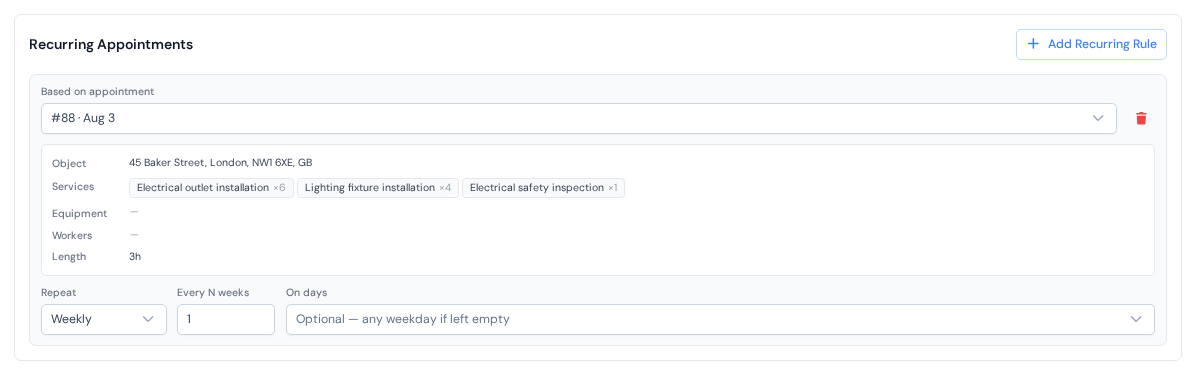
One rule: the base work order on top, the rhythm below. - 4Choose the rhythm
Under "Repeat", pick "Weekly" or "Monthly". Weekly rules ask "Every N weeks" and, optionally, "On days"; monthly rules ask "Every N months" and a "Day margin". The next section explains what these do.
- 5Save
Press "Update" at the bottom of the dialog. The rule is live from that moment.
When the next work order is planned for
The new copy does not get a fixed date. It gets a planning window, counted from the day the previous work order was last worked on:
- "Weekly": the window lands the chosen number of weeks later. Leave "On days" empty and any day of that week works; tick specific days and the window narrows to them, for example Tuesday to Thursday.
- "Monthly": the window lands around the same day of the month, the chosen number of months later. The "Day margin" widens it: a margin of 5 days means up to 5 days earlier or later is fine, but never spilling into another month.
Within that window, you book the work order the way you always do. The window keeps suggestions and auto planning honest: the job is offered for the right days, not whenever there happens to be a gap.
Spotting recurring work orders
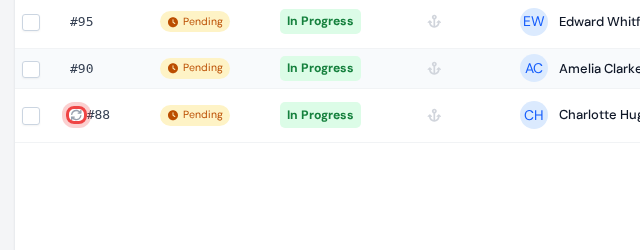
Work orders that belong to a recurring rule carry a small circular-arrows icon next to their number, in the work orders list, in the calendar and on the work order itself. Point at it and the tooltip says "Recurring work order".
Changing or stopping a rule
Open the client's "Work Orders" tab again to adjust anything. Changes to the rhythm apply from the next copy onward; work orders that already exist stay exactly as they are.
To stop the repetition, click the red trash icon in the rule's corner and press "Update". No work order is deleted: new copies simply stop being created, and the circular-arrows icon disappears from the existing work orders.