Service reports go out by email, and work order statuses follow the calendar
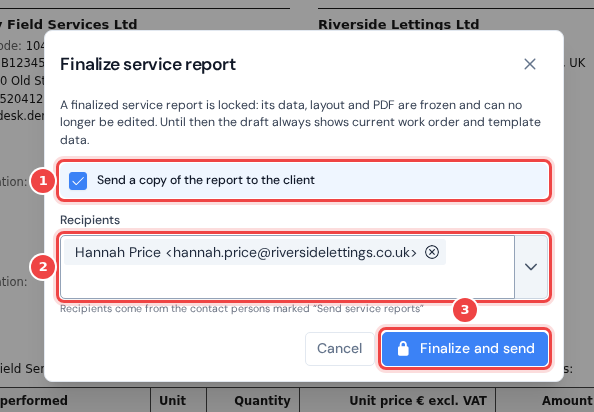
The job is done, and one chore was always left: download the report, write the email, attach the PDF. ServisGo now sends it for you. Click "Work Orders" in the sidebar, click a work order's number in the "ID" column, and in its "Service reports" card open a draft with the eye next to it (a new report is made with "Generate service report" in the card's corner). In the preview press "Finalize" in the bottom-right corner and tick "Send a copy of the report to the client". The people marked "Send service reports" on that client are already listed under "Recipients". Add or remove an address if you need to, then press "Finalize and send". The client receives the PDF in an email sent in your company's name, and a reply to it goes to your company's email address. Every step is in the service reports guide.
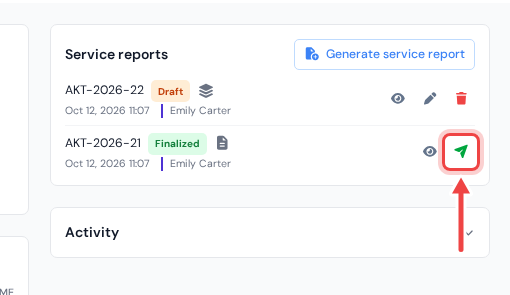
Did it reach them? Every finalized report now carries a small paper plane, grey while nothing was sent and green once it was. You find it at the end of the report's row in that same "Service reports" card. Click it and "Delivery history" lists who received the report and when, with a "Recipients" field right below for sending it again, to the same people or to anyone else.
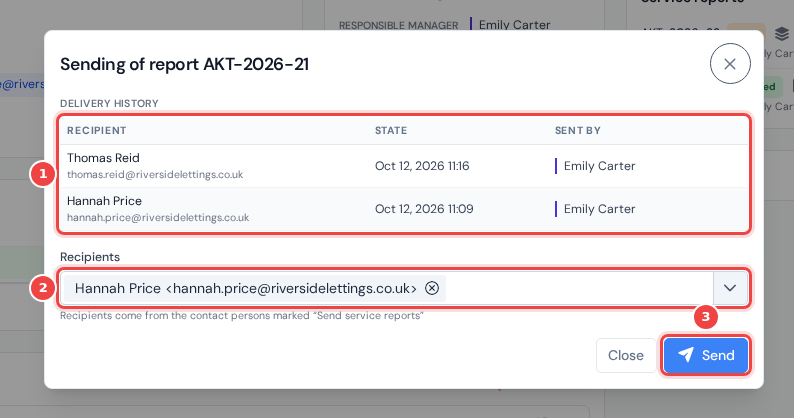
It can also leave without you. Click "Settings" at the bottom of the sidebar, pick "Service reports" in the list of modules, tick "Send service reports automatically when the technician finishes a work order" and press "Save" (one template has to be marked "Use as the default template" for this). From then on, when a technician ends a visit in the app and answers "Is the work order completed?" with yes, the report is generated from the default template, finalized and emailed on the spot. Two more additions round it off. One report can now cover several work orders of the same client: add them under "Included work orders" in the "Generate service report" dialog. And every report of the company has its own page: "Service reports" in the sidebar, right under "Clients".
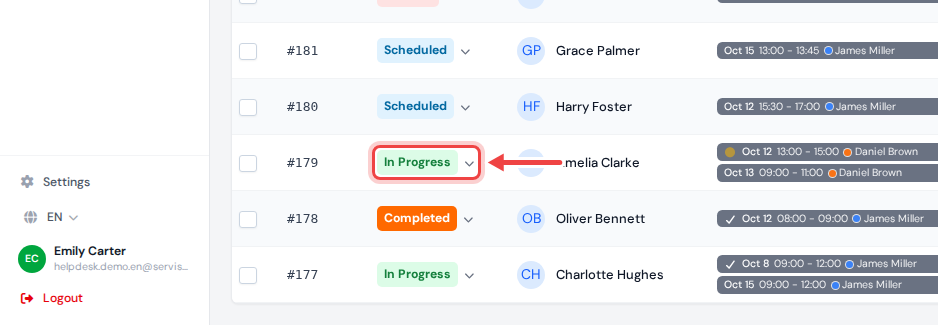
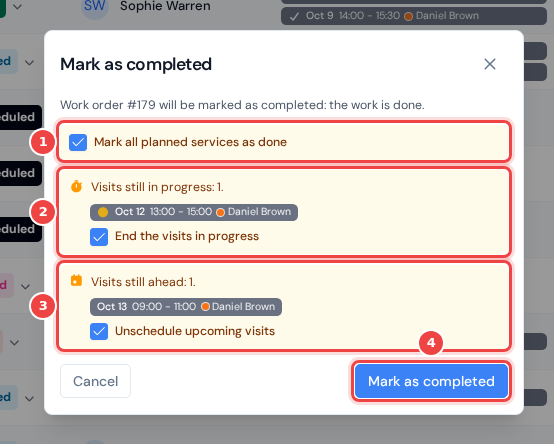
The second change is about statuses. A visit no longer has a status that somebody must remember to set. Instead, the work order's status follows the calendar by itself: "Scheduled" while all its visits are ahead, "In Progress" from the first planned start to the last planned end, "On Hold" once every visit is behind and nobody closed the job. Closing stays in your hands. Click "Work Orders" in the sidebar, click the status badge in the "Status" column (the arrow points at it below) and pick "Mark as completed", "Finish" or "Cancel work order". ServisGo asks only what this job needs: whether to mark the remaining planned services as done, end a visit that is still running, and take the visits still ahead off the calendar. A closed job comes back with "Reopen" in the same menu. Work order statuses explains each of them.
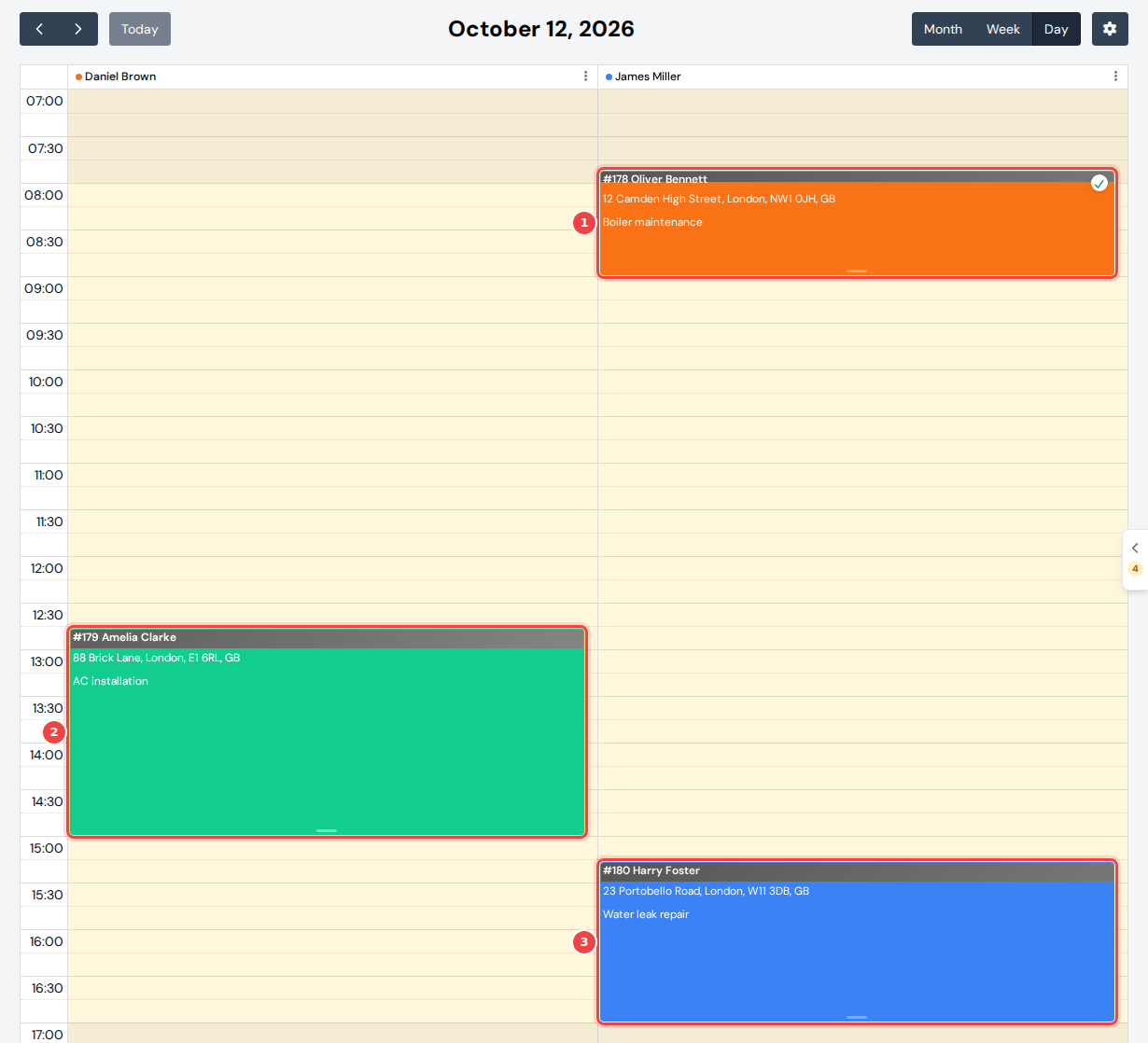
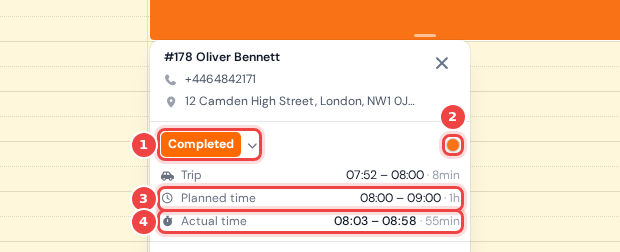
In place of a status, a visit now shows what really happened. Open "Calendar" in the sidebar: a visit that is running pulses, an ended one carries a green check in its corner, and every block is filled with the colour of its work order's status. Click a visit and "Actual time" sits right under "Planned time". The technician's start and end in the app fill it in; if someone forgot, click the time itself and type the right one. More in visits in the calendar.