Several contact persons per client, and the right one on every work order
One client, one phone number: that was fine for a private customer and a stretch for a company, where the owner orders, the accountant wants the paperwork and the caretaker answers the door. From today a client carries as many contact persons as you need. Click "Clients" in the sidebar, open a client, and the first card of the dialog, "Contact persons", lists them; "Add contact person" in its corner adds a row, and once there are two, a "Primary" checkbox marks the one the client is named after. The rest of the dialog is unchanged; the details are in clients and their addresses.

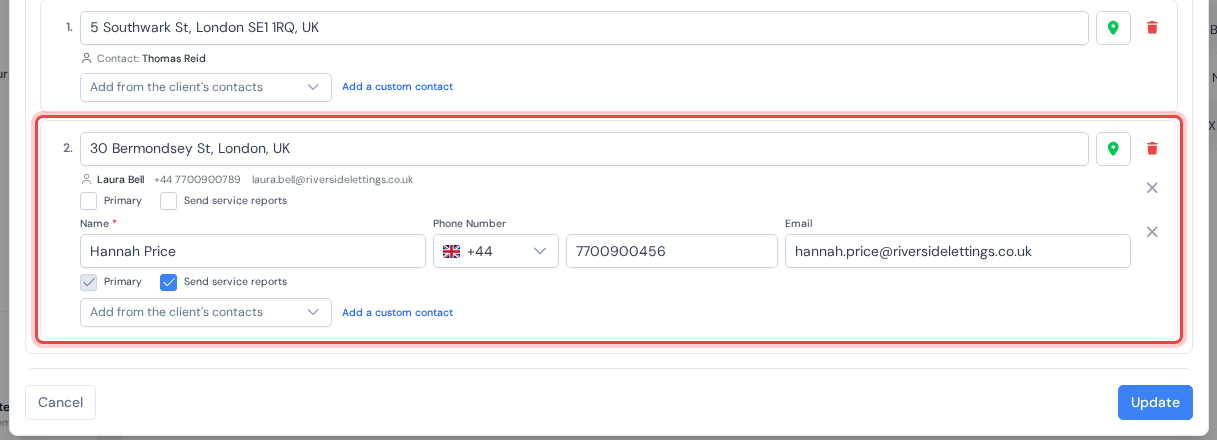
Objects got the same treatment. Under each object's address in the same dialog, "Add from the client's contacts" picks someone from the list above, and "Add a custom contact" adds a person who belongs to that object only. With two or more people on an object, one of them is its primary, and each carries its own "Send service reports" checkbox (shown while acts of work are on; sending the acts to the ticked people arrives in a later update).
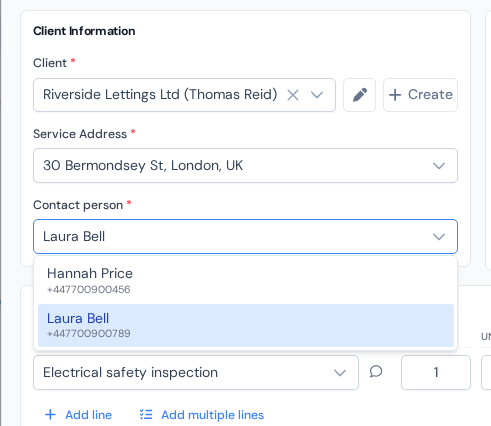
The work order then names exactly one of them. Open "Work Orders" in the sidebar, click "New Work Order" (or "Edit" in a work order's three-dot menu), pick the client and the object, and the new "Contact person" dropdown under the address offers that object's people with the primary preselected; with a single person it just shows the name. Whoever you pick is who the list, the calendar, the act of work and the technician's "Call" button use. See creating a work order.
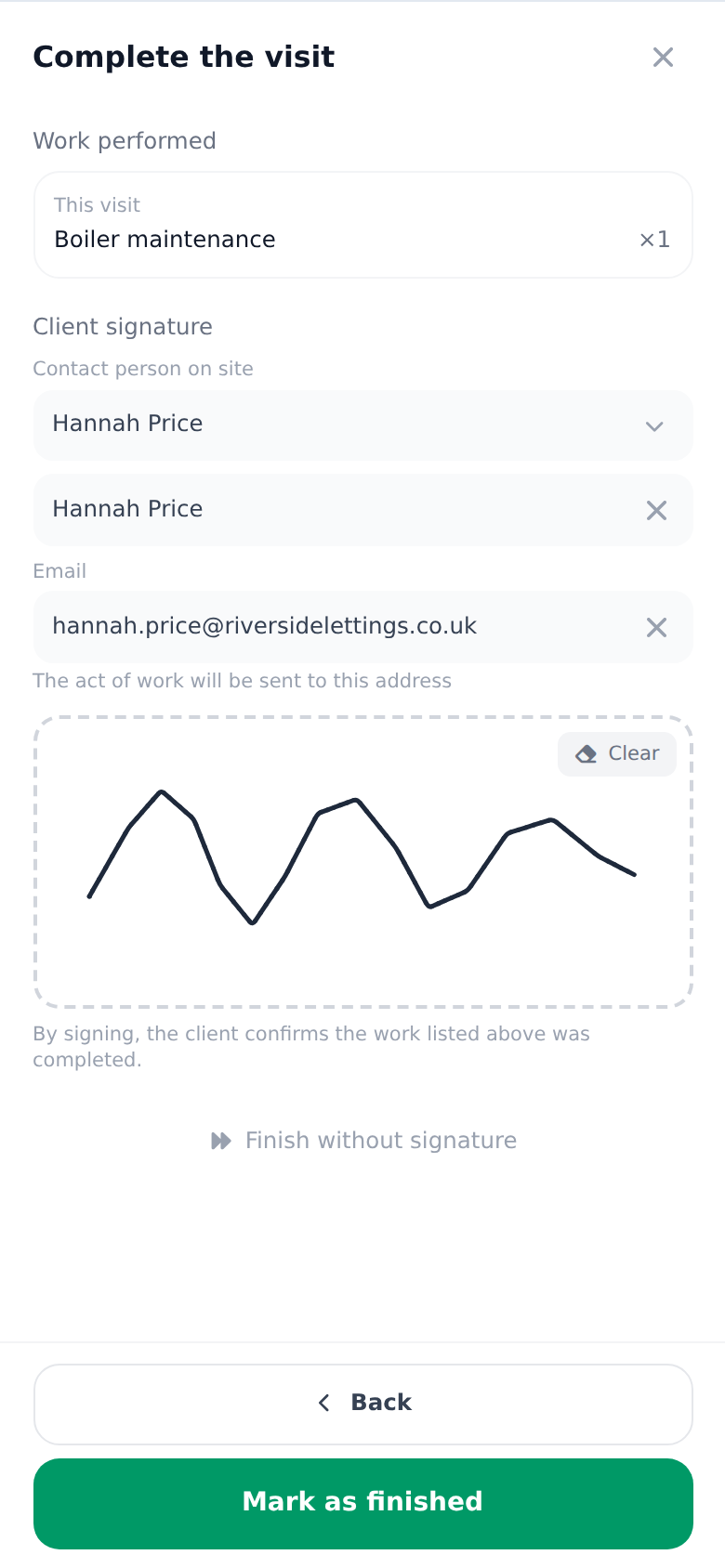
In the field, the last step of a finished job now starts with "Contact person on site": the technician picks who actually received the work, the name fills in, and with acts of work on, so does the email address the act will go to. Both stay editable before the client signs. That step, in all its variants, is in client signatures.