Addresses that land on the map, and a contact person for every object
Route planning is only as good as the points it works with. Until now, ServisGo tried to find every saved address on the map by itself, and when it guessed wrong or gave up, you could not do much about it. That changes today. The address box in every form (client objects, invoice addresses, a technician's home, your company address) is now a single line: start typing, and matching addresses drop down, closest to your company first. Pick one and the full address fills in, postal code included, with the point on the map attached. The pin button next to the box turns green.
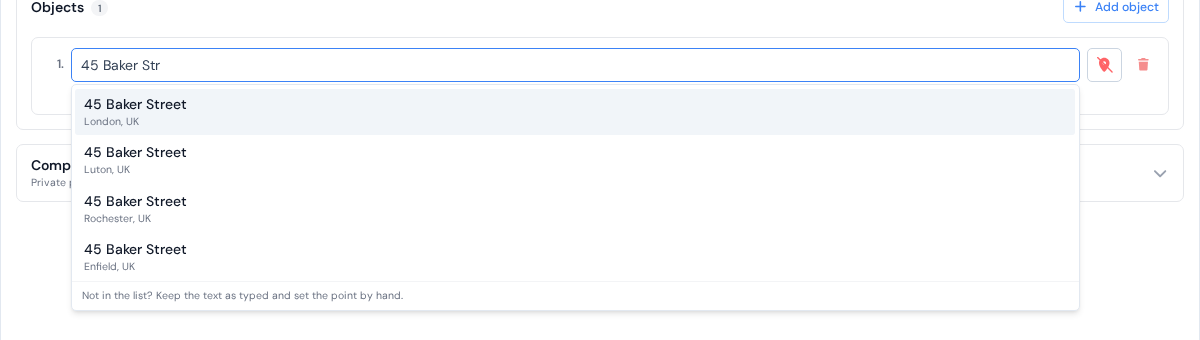
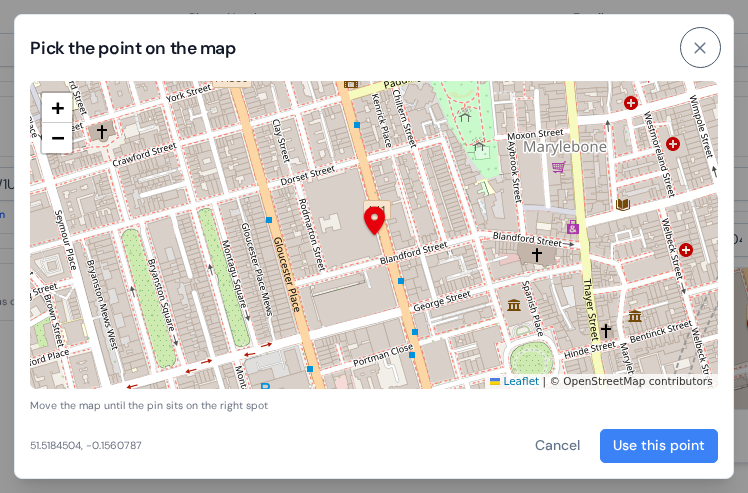
A new building, a summer house on a forest road, a plot without a street name? Keep the text as you typed it and click the pin button: a small panel lets you type the coordinates or, easier, click the map preview and drag the map until the pin sits on the right spot. "Use this point" saves it, and the pin turns green with "Set by you". A red pin means the address still has no point: route planning skips it and map links stay plain text. The whole thing, pin states included, is in the new guide addresses and the map.
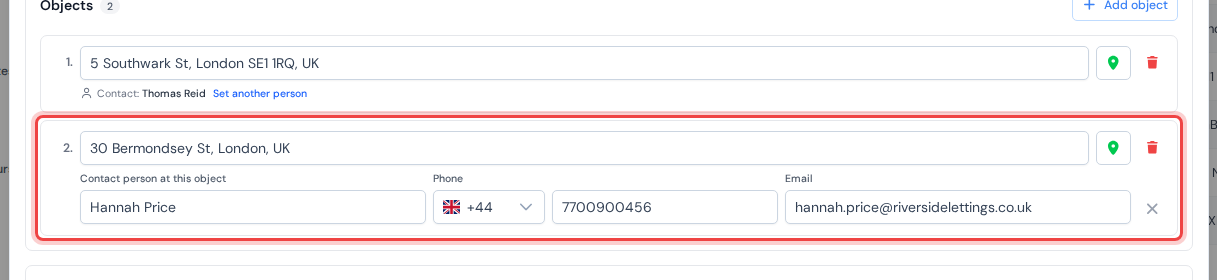
The second change is about people. The person who orders a job is often not the person who opens the door: the office manager books, the caretaker receives. Now every object (each address a client has) can carry its own contact person, phone and email, and ServisGo uses it wherever a work order on that object appears: the work orders list and the calendar name that person, the technician's "Call" button dials them, and the act of work lists them as the contact person. The client form was rebuilt around this and is a third shorter, with a "Company and invoicing" row that stays folded until you need it. Details in clients and their addresses.
And one thing that follows from the points: every map link, including "Navigation" in the technician app, now opens exactly at the address's pin, so the technician arrives at the door rather than somewhere on the street.