ServisGo
Scheduling & calendar Route optimization Recurring jobs Technician app Checklists Service reports Client portal & SMSAll features
Cleaning HVAC Plumbing Electrical Landscaping Pest controlAll industries
PricingHelp centerWhat's new
EN
Log inStart for free
Features
Scheduling & calendar Route optimization Recurring jobs Technician app Checklists Service reports Client portal & SMSAll features
Industries
Cleaning HVAC Plumbing Electrical Landscaping Pest controlAll industries
PricingHelp centerWhat's newStart for free
Help center

Keeping clients in the loop

Nobody likes a no-show: not you, and not your client. That is why every appointment in ServisGo comes with a personal page for the client, where they can confirm the time, pick a different one, or cancel, all without a single phone call.

Clients do not need an account or a password. One secure link is all it takes.

On this page
  1. The client's personal page
  2. What the client sees
  3. Seeing the client's answer

The client's personal page

Each appointment has its own page for the client, reachable by a secure link. To get it, open the "Appointments" page from the left sidebar and find the appointment's row. Click the three-dot button at the right end of the row and pick "Customer Portal Link" from the menu that opens. A window with that name shows the link, with a copy button next to it. Share it any way you like.
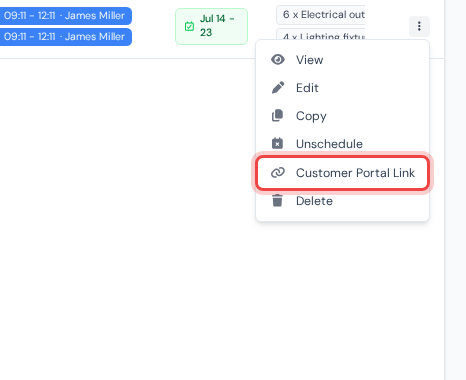
The open three-dot row menu with the Customer Portal Link action highlighted
The highlighted "Customer Portal Link" entry in the row menu opens the window with the link.

With the "SMS" feature switched on in "Settings", you do not even have to share it yourself: clients receive the link by text message automatically. There are two kinds of texts: a "Reminder" about an upcoming visit, and a "Confirmation request" asking the client to confirm the time. You set up both under "Settings" in the left sidebar: pick "SMS" in the list on the left, and each text has its own message and "Days in advance" setting.

What the client sees

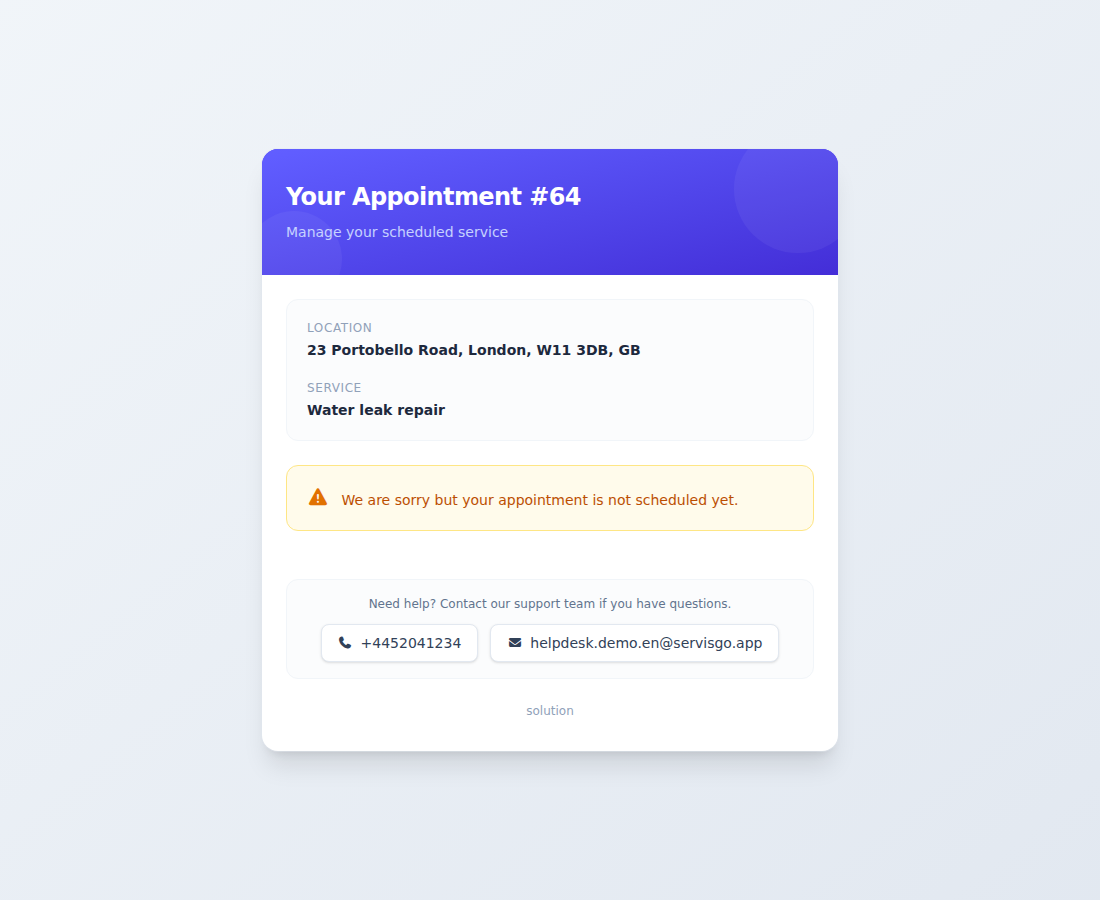
The link opens a simple page called "Your Appointment", showing the service, date, time and location, plus three buttons: "Confirm", "Reschedule" and "Cancel".

The client's appointment page with the Confirm, Reschedule and Cancel buttons
What the client sees: the appointment details and one-tap actions.

If the client taps "Reschedule", ServisGo shows other available times based on your team's real availability. The client simply picks one, and your calendar updates.

Seeing the client's answer

The client's answer lands straight in your calendar. Every visit block shows a small colored dot in its top-right corner:

  • Green: the client confirmed.
  • Amber: still waiting for an answer.
  • Red: the client declined.
A visit block in the calendar with the small round confirmation dot highlighted in its top-right corner
The highlighted dot in the block's top-right corner: amber here, so the client has not answered yet.

Click a visit block once and a details card opens. The "Client confirmation" line spells the answer out in words.

A visit card in the calendar showing the Client confirmation status
On the visit card, the "Client confirmation" line shows the client's answer.
Related articles
  • Creating an appointment
  • Booking visits into the calendar
ServisGo

Field service management software for small and medium service companies.

Product
Scheduling & calendarRoute optimizationRecurring jobsTechnician appChecklistsService reportsClient portal & SMSAll featuresPricing
Industries
CleaningHVACPlumbingElectricalLandscapingPest controlAll industries
Resources
Help centerWhat's newSupport
Company
ContactPrivacy policyTerms of serviceDelete account
© 2025 ServisGo. All rights reserved.