Blocked hours: protecting time off
Not every hour of a working day is for visits. Lunch breaks, days off and the Monday morning team meeting all need to stay free, and nobody should have to remember them while scheduling.
Blocked hours do exactly that. You describe the time once, and ServisGo keeps visits out of it: in suggestions, in planning, everywhere.
The Blocked Hours page
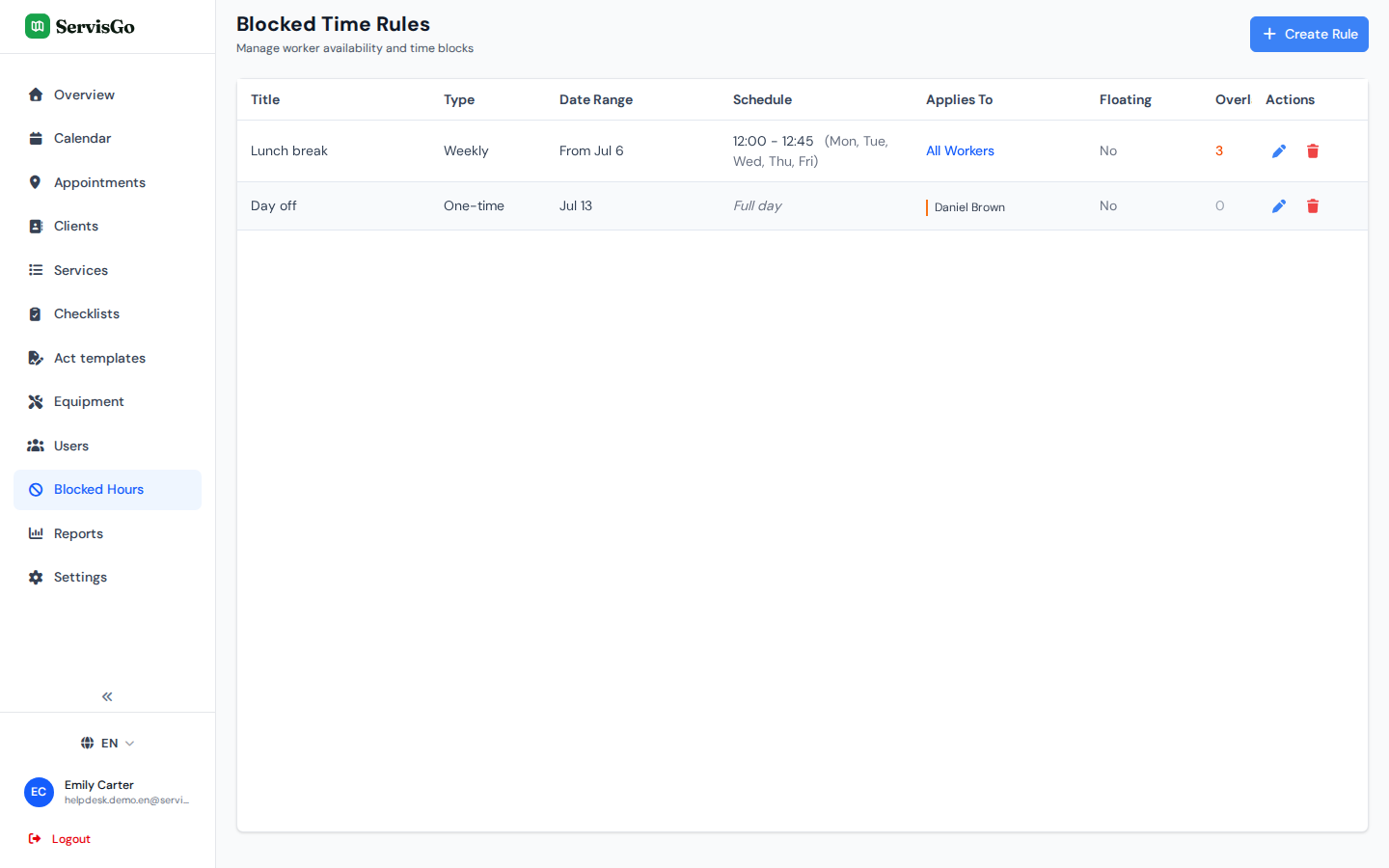
Click "Blocked Hours" in the menu on the left side of the screen. The "Blocked Time Rules" page opens with all your rules in one table: what each one blocks, when, and who it applies to.
Creating a rule
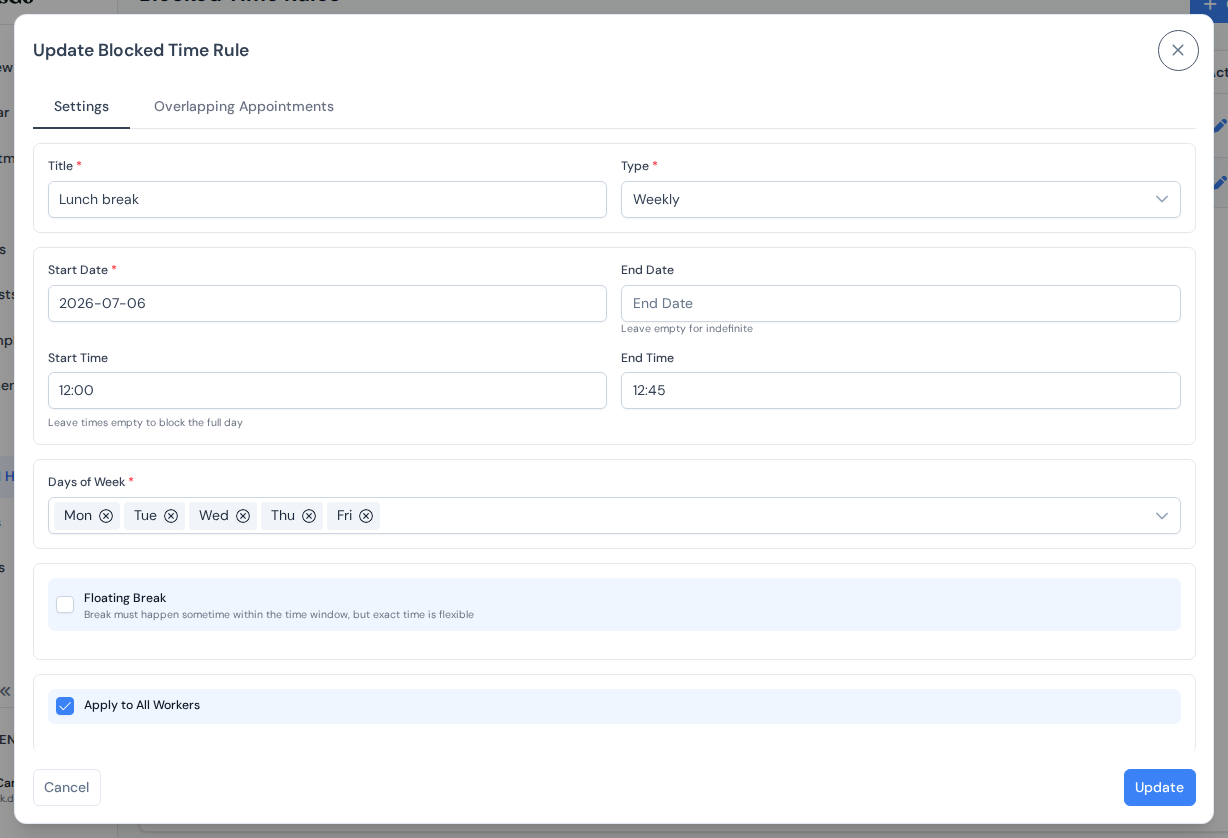
Click the "Create Rule" button in the top-right corner of the page. A window opens where you describe the time you want to protect. Start with the "Type" dropdown:
- One-time
- A single block between the "Start Date" and "End Date" you set: a vacation, a public holiday, a training day.
- Weekly
- Repeats on the weekdays you tick in the "Days of Week" field (it appears once you choose Weekly), like a team meeting every Monday.
- Daily
- Repeats every day, like the classic lunch break.
- Full day or specific hours: set a "Start Time" and "End Time", or leave the times empty to block the full day.
- Everyone or just some: tick the "Apply to All Workers" checkbox, or leave it unticked and pick the exact people in the "Workers" list below it.
- Open-ended rules: leave the "End Date" empty and the rule repeats indefinitely.
What blocked hours do
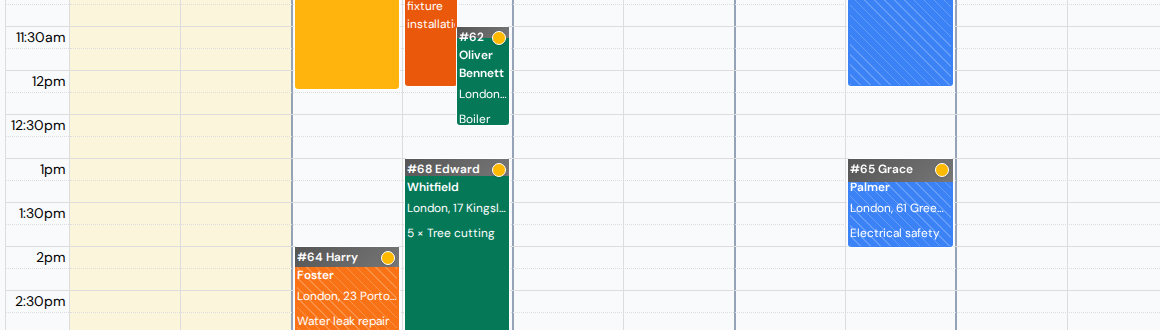
Once a rule exists, time suggestions and planning simply avoid those times, so nobody gets a lunch-hour booking by accident. The blocks are also visible in the calendar: a blocked hour shows up as a striped block in the technician's column, labeled with the rule's title, so everyone can see why a gap is not free.